
Reference to Video AI Generator
Upload multiple images, up to one video, or both, explain what each reference should guide, and create a new video from your visual direction.
Create from references
Add multiple images, one video, or both. In your prompt, explain what each reference should guide.
Reference files *
0/5 · 0MB/20MB
Name each reference’s role, then describe the action, setting, and camera direction for the new video.
Reference-to-video examples
Create a reference-to-video clip in four steps
Combine multiple images with up to one video reference, give each source a clear role, and describe the new shot you want to create.
- 01
Upload your references
Add one to five reference files. You can use multiple images, up to one video, or both, as long as the combined size stays within 20MB.
- 02
Assign each reference a role
Decide which file controls the character, product, location, style, composition, or motion direction.
- 03
Describe the new video
Write the action, camera movement, setting, and relationship between the references in one focused prompt.
- 04
Generate and review
Create the clip, then check the subject, scene, movement, framing, and transitions before downloading it.
Give every reference a specific job
A reference works best when the prompt explains whether it controls the subject, environment, visual treatment, or movement of the new video.
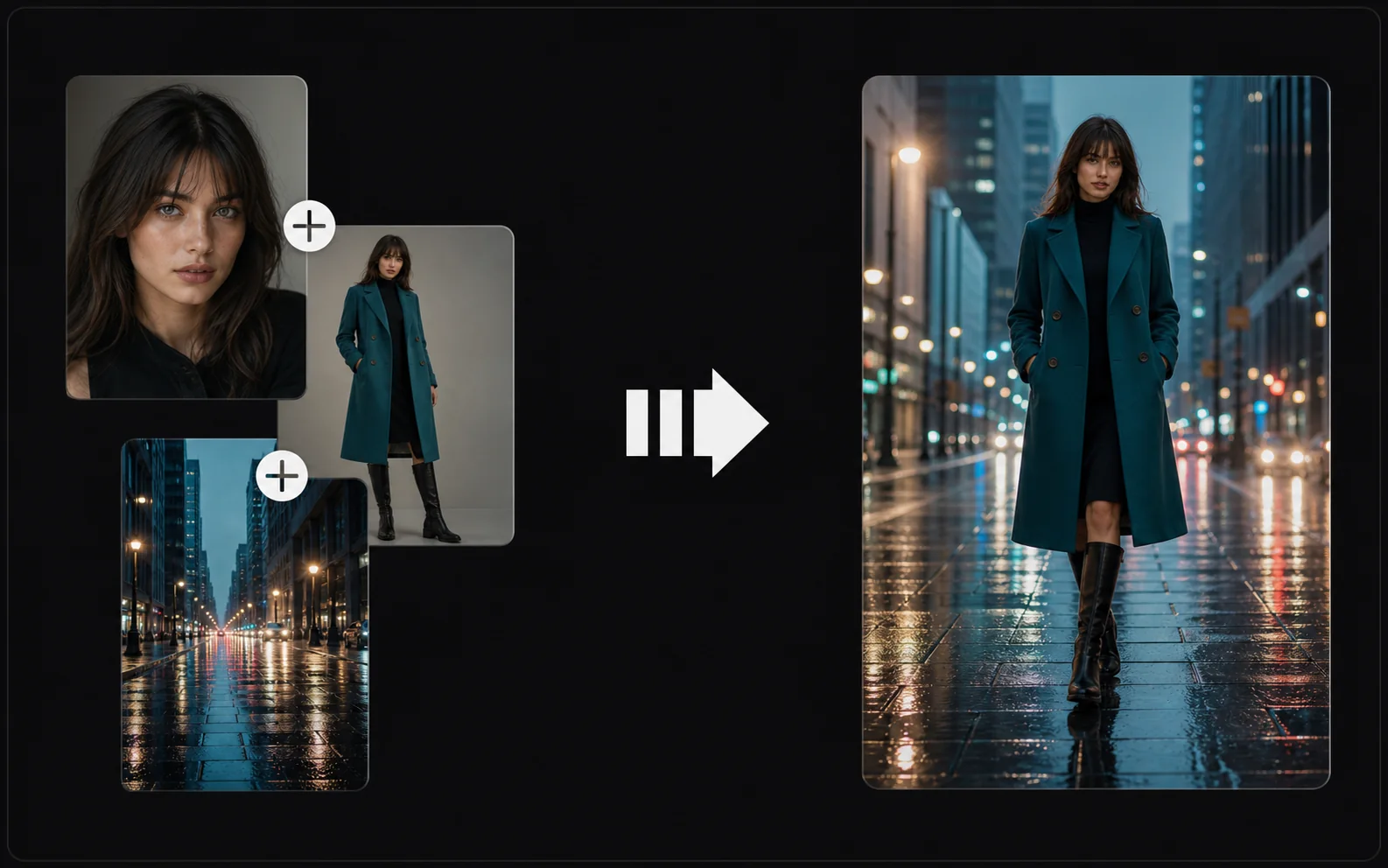
Protect the opening subject and pose
Use an image to define the character, product, wardrobe, or starting composition. State which visible details should guide the new scene.
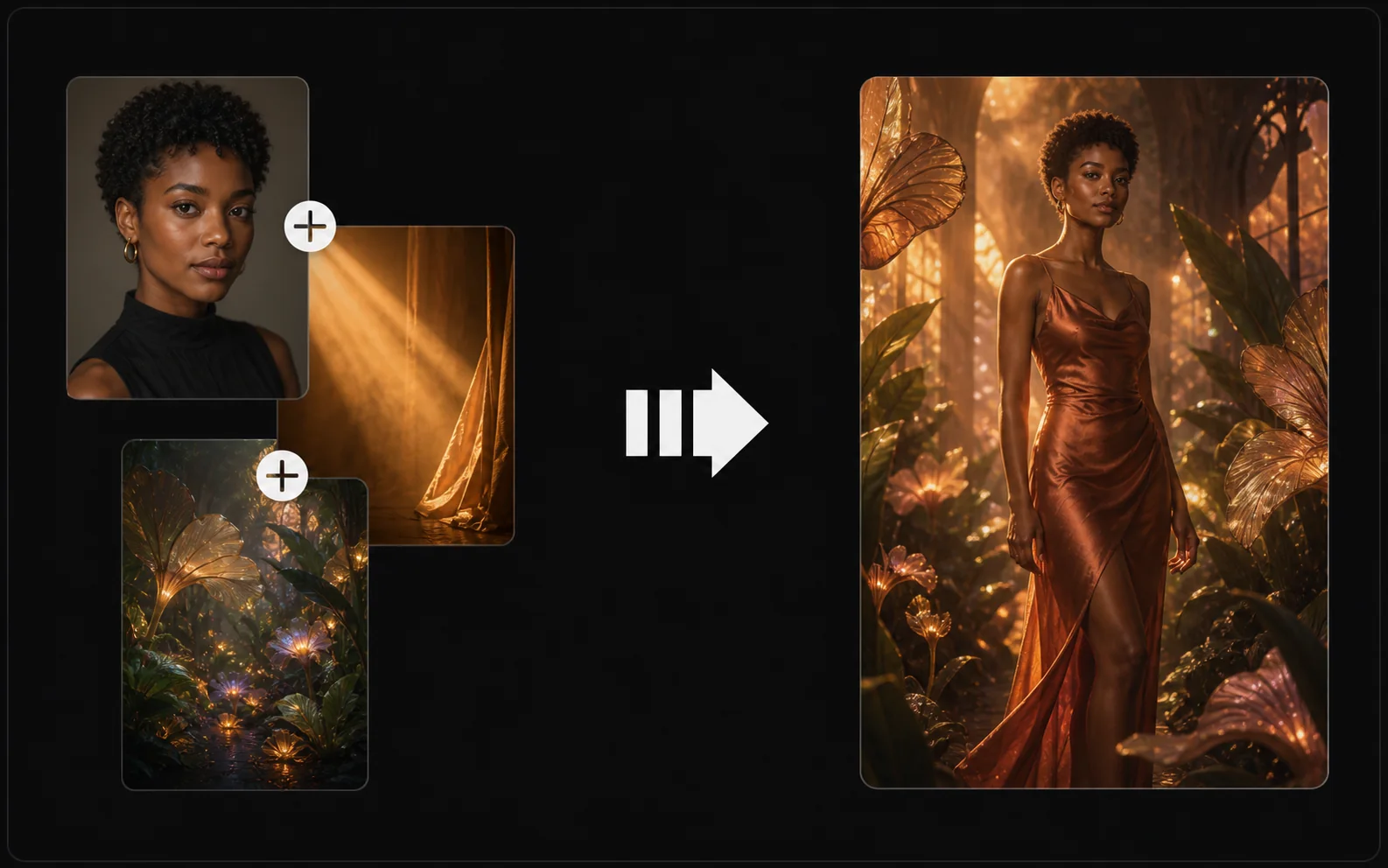
Carry a visual style into motion
A separate image or clip can guide materials, color, lighting, and atmosphere. Name those qualities instead of asking the model to copy the entire source.
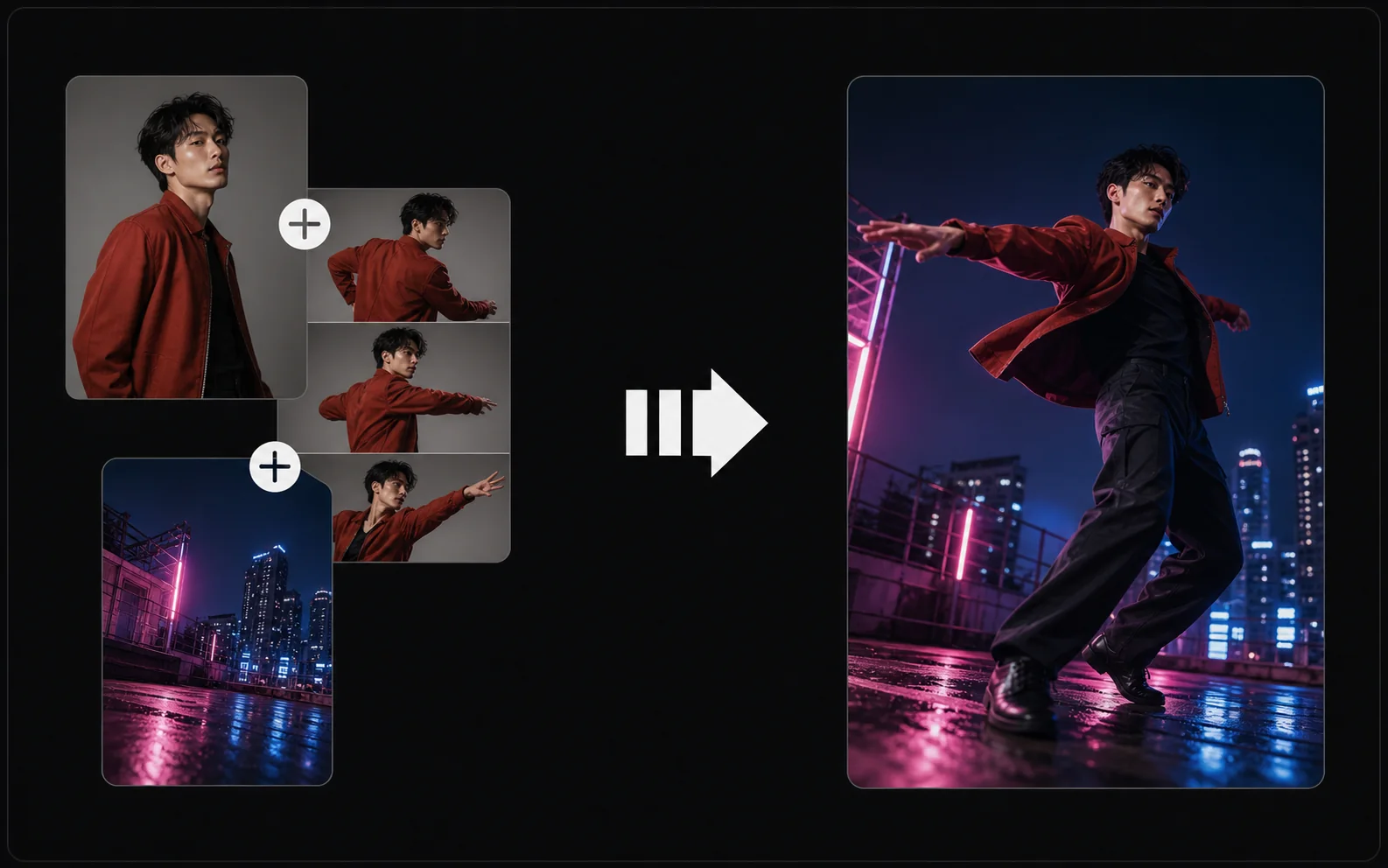
Use video to describe movement
A video reference can show timing, body motion, or camera rhythm. Explain whether the new clip should follow the movement, pacing, framing, or transition.
Write prompts that connect the references
Treat the upload set like a small production brief. State what comes from each file, then describe the action and camera direction for the final clip.
Number the references in upload order
Write “first image,” “second image,” or “video reference” so each instruction maps to a visible source instead of becoming a loose list.
Separate identity from movement
Use one reference for who or what appears and another for how the shot moves. This makes competing directions easier to identify and revise.
Describe the new action explicitly
References provide direction, but the prompt still needs a clear event: what moves, where it moves, and what changes before the shot ends.
Fix drift in the reference set first
If the subject stops looking recognizable, remove a conflicting file or add a clearer angle before expanding the prompt. More description cannot always repair weak references.
Ready to connect your references?
Turn mixed image and video references into a new clip
Upload up to five files within the 20MB total limit, including no more than one video, then explain each reference and review the result.
Starting from one still frame instead? Try Image to Video . Only have a written scene? Use Text to Video .
Reference to Video FAQ
Answers about mixed references, upload limits, prompts, source roles, generated results, and review.
What is reference to video?
Reference to video is a workflow that uses uploaded images, up to one video, and a prompt to guide the subject, setting, style, movement, or composition of a newly generated video.
Can I upload images and videos together?
Yes. You can combine multiple images with up to one video in the same request. The upload set can contain up to five files with a combined size of 20MB or less.
How should I describe several references?
Refer to files by upload order and assign each one a job. For example, use the first image for the character, the second for the location, and the video for movement or camera rhythm.
Do I need both an image and a video?
No. You can begin with multiple images, one video, or a mixed set. Choose only the references that contribute a clear visual or motion direction.
How is reference to video different from image to video?
Image to video usually animates one starting image. Reference to video can combine several source roles—such as character, product, location, style, or motion—into a newly described scene.
Will the generated video copy every reference exactly?
No. AI generation can reinterpret faces, products, clothing, text, backgrounds, and movement. Review the full result before using it in a final edit or published project.
Why is my Create video button disabled?
Add at least one supported reference, wait for every upload to finish, and enter a prompt. The button also stays disabled while a video is being generated.
Keep creating
Set up the next pass
Continue with generation, editing, model choice, or source preparation without starting from the sidebar.
AI video tools
More video tools
Generate, edit, clean up, or improve clips.
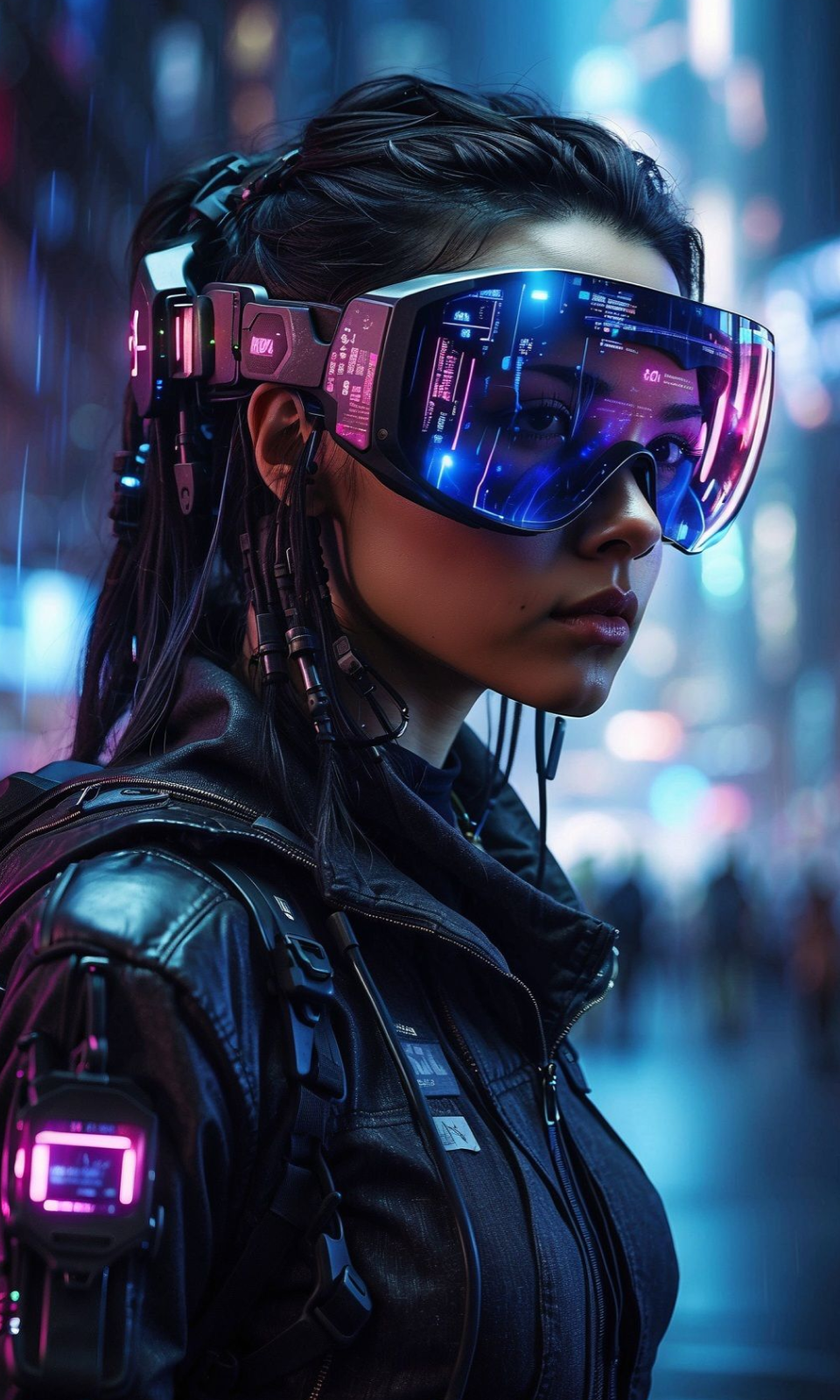
AI models
Compare video models
Pick a better model before rendering again.

AI image tools
Prepare source images
Create a stronger still for the next video run.
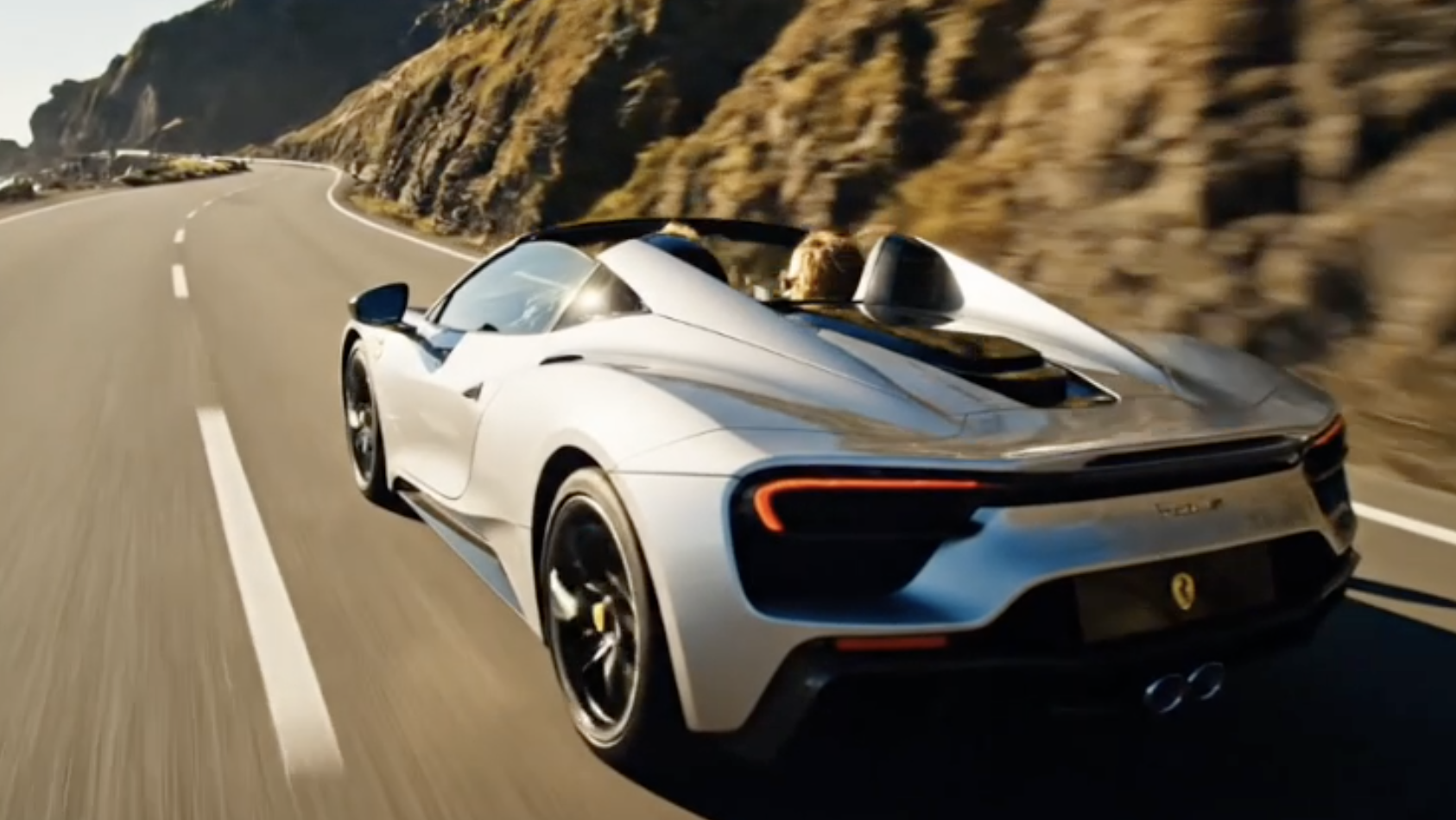
AI Video Generator
Start a video
Create a clip from a prompt or image.
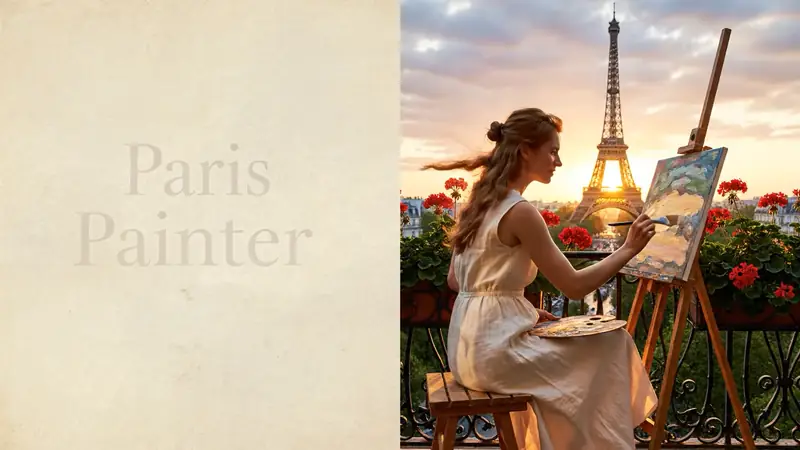
Text to Video
Prompt-first video
Turn a written scene into motion.
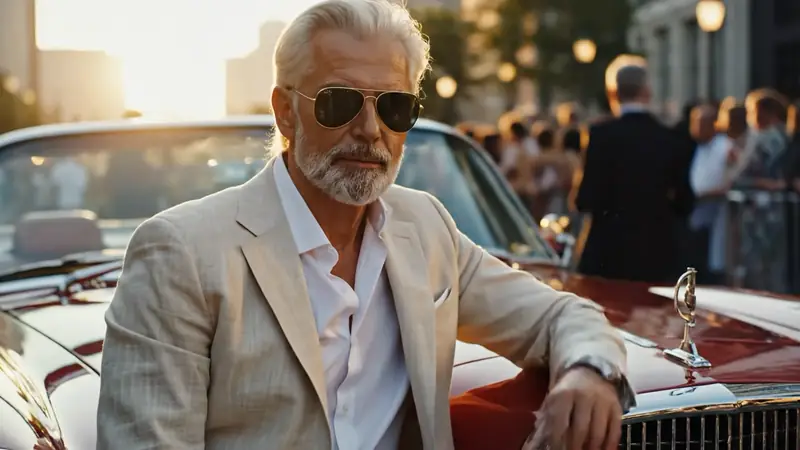
Image to Video
Animate a still
Turn an image into a short clip.
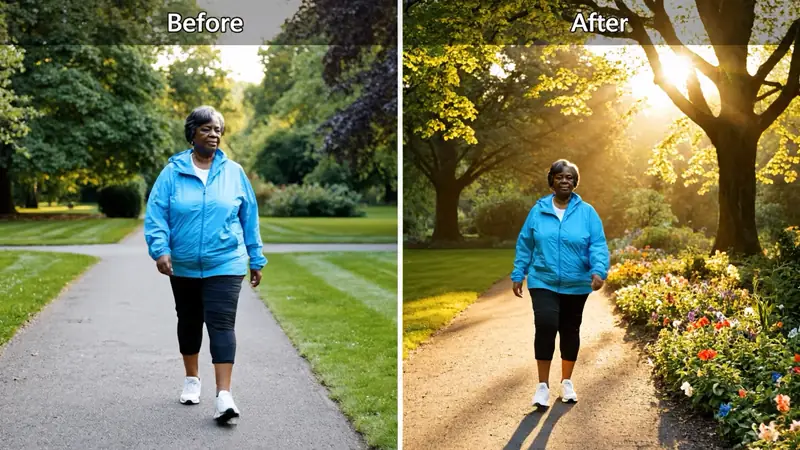
Video to Video
Restyle footage
Change the look of an existing clip.
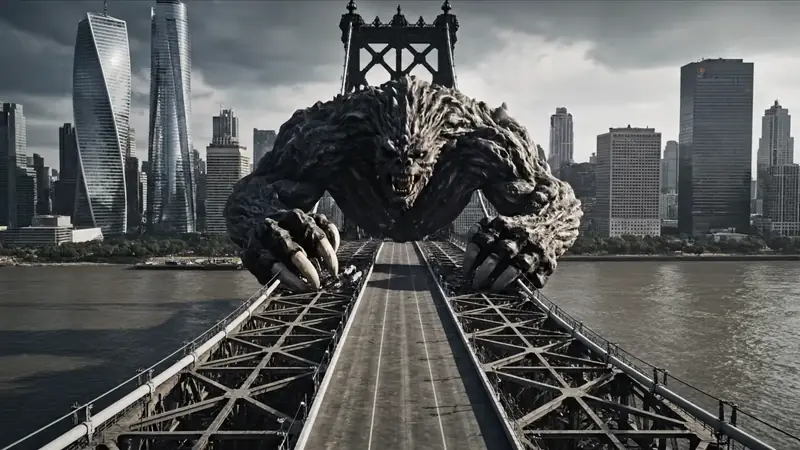
AI Video Extender
Extend a clip
Continue a short video into a longer scene.
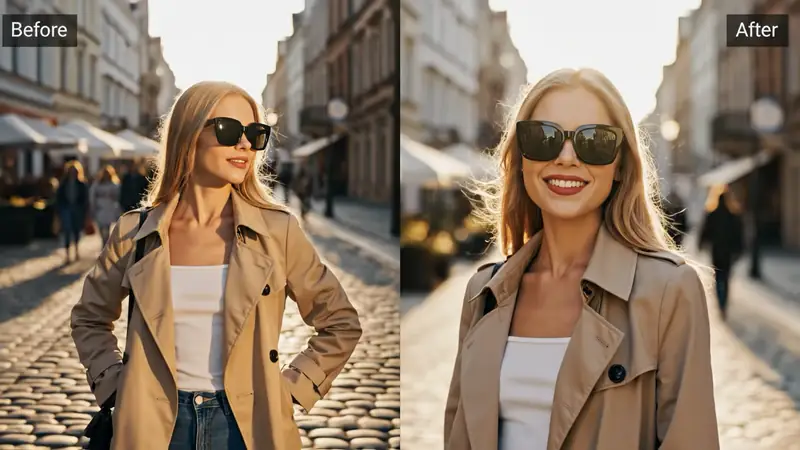
AI Video Editor
Edit with prompts
Revise a clip without a timeline.