
AI Wallpaper Generator for Desktop and Mobile Screens
Make wallpapers that fit the screen, not just the prompt. Choose a ratio, pick a style, and leave room for icons, widgets, or lock-screen text.
Create
Model
Prompt
0/500
Style
Size
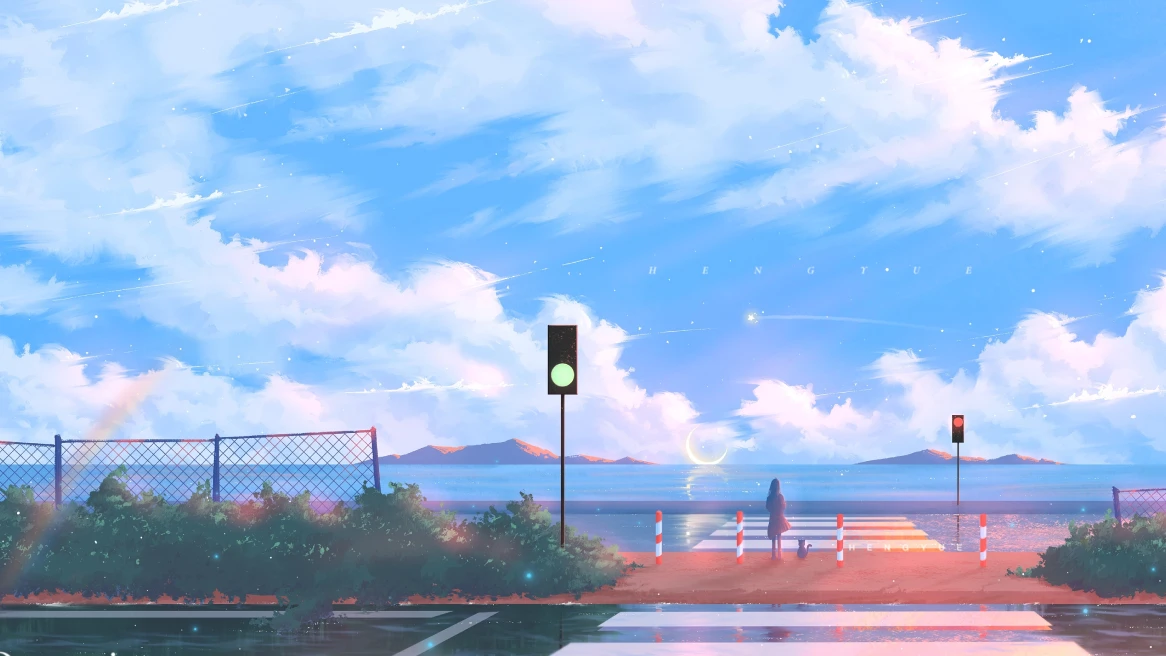
Start with the screen, then the scene
- 01
Pick the screen size
Choose desktop, ultrawide, phone, or tablet before you write your prompt. The screen shape helps decide where the subject should sit.
- 02
Describe the scene clearly
Say what you want to see, the mood, the lighting, and where the wallpaper should leave space for icons or text.
- 03
Choose a style
Choose a style option when you want the image to feel cleaner, more cinematic, more illustrated, or more realistic.
- 04
Generate, then adjust one thing
If the first result is close, change the ratio, style, or one prompt detail instead of rewriting the whole prompt.
Create wallpaper formats for the screens you use
Generate desktop backgrounds, phone lock screens, and matching sets from the same wallpaper idea.
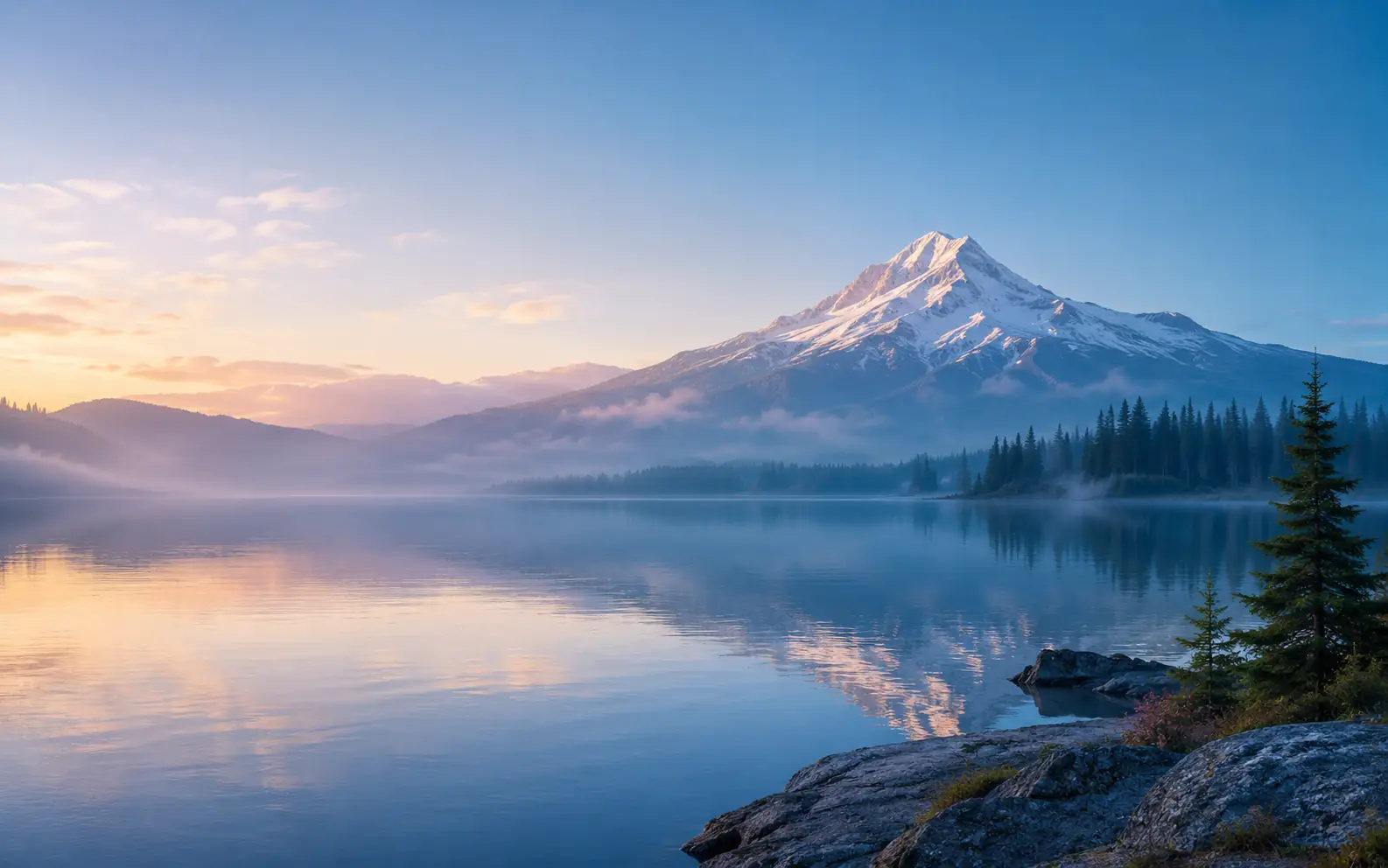
Desktop backgrounds
Create wide wallpapers with enough open space for app icons, widgets, docks, and a clear main view.
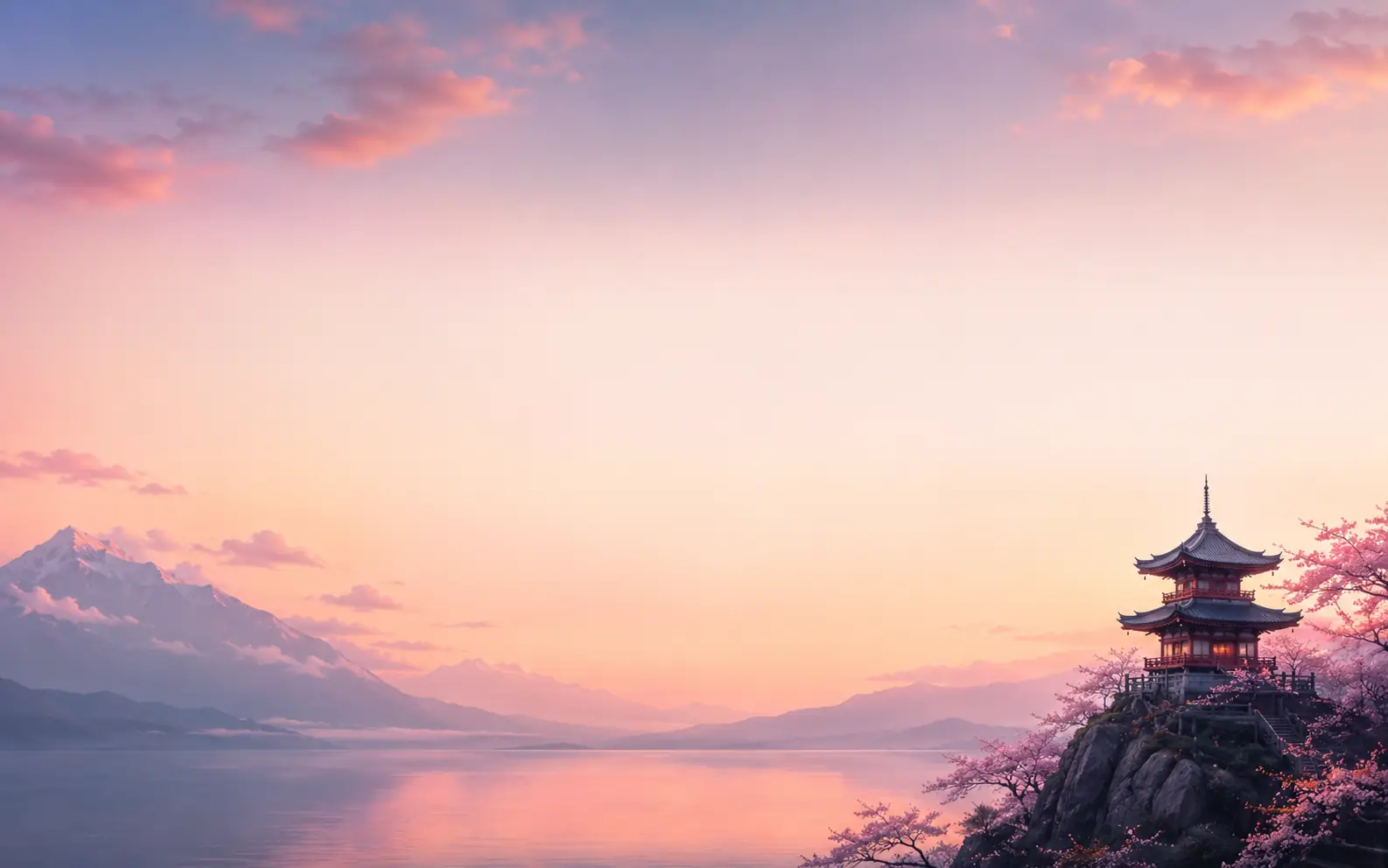
Phone and tablet wallpapers
Generate vertical or tablet-friendly wallpapers that leave room for lock-screen clocks, notifications, and home-screen icons.
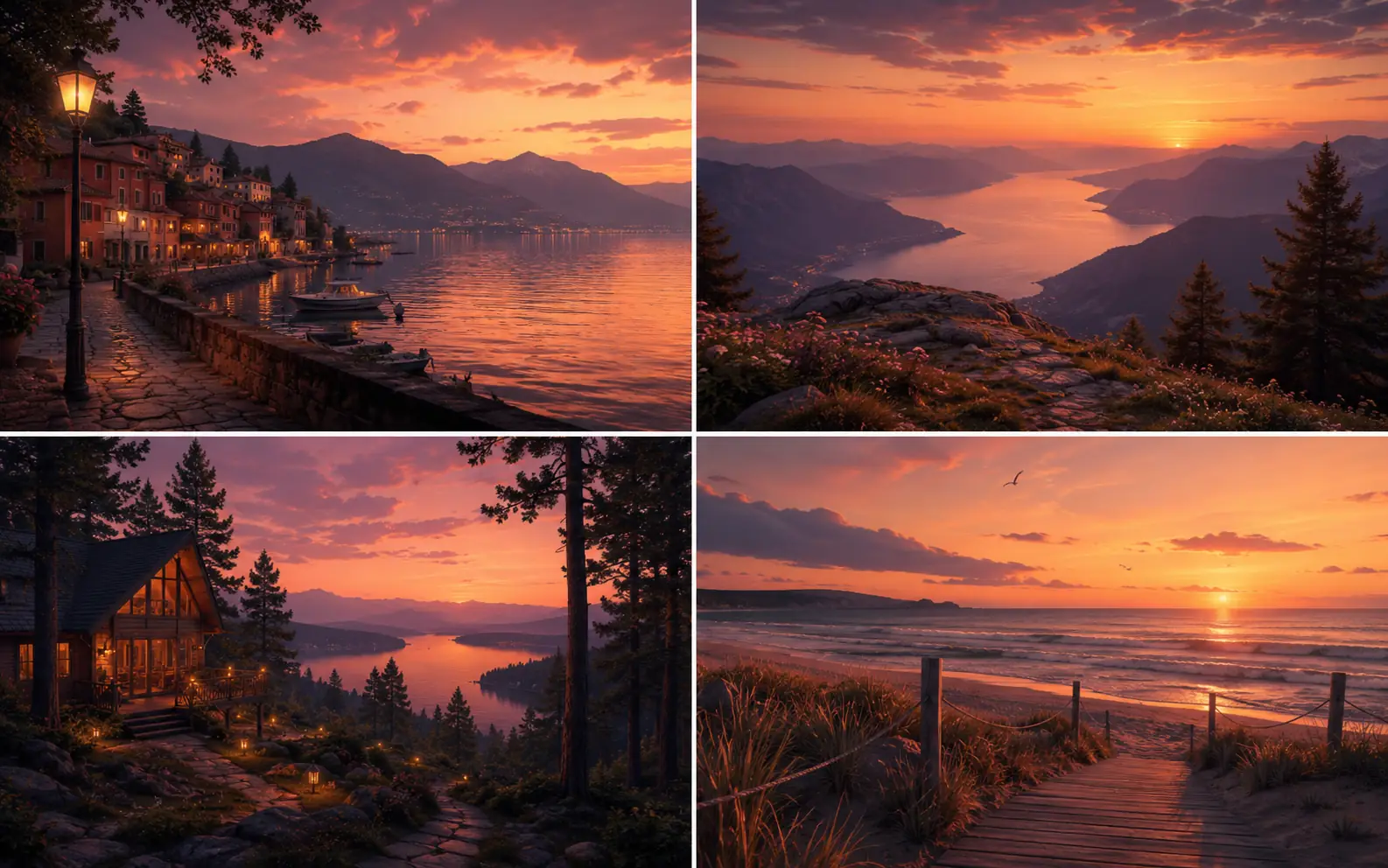
Matching wallpaper sets
Keep the same mood, colors, and style across desktop and mobile versions so your screens feel connected.
Check the first result before you save it
A wallpaper has to work behind real icons, widgets, clocks, and docks. Use these checks after each generation.
Check the busy areas
Faces, bright lights, and small details should not sit under the clock, dock, or main icon area.
Watch the crop
If the subject feels cut off, switch ratio before changing the whole prompt.
Check icon contrast
Bright icons need darker open areas. Dark icons need lighter open areas. The wallpaper should keep the screen easy to read.
Make a second version
Reuse the same mood for another size, then adjust the crop so the set feels intentional across devices.
Ready to make your wallpaper
Create a wallpaper, then refine the best version.
Generate a version for your screen. If the best one needs more detail, cleaner texture, or a larger file, continue in Image Enhancer , Unblur Image , or Image Upscaler .
AI Wallpaper Generator FAQ
Quick answers about ratios, prompts, screen fit, and what to do after the first result.
How is this different from a general AI image generator?
Use it when you care about wallpaper details such as screen ratio, crop, style, and space for icons, widgets, docks, or lock-screen text.
Which ratio should I start with?
Use 16:9 for most desktops, 21:9 for ultrawide screens, and 9:16 for phones. Start with the device you care about most.
What should I write in the prompt?
Write the screen type, scene, mood, lighting, and where icons or text need space. For example: wide desktop wallpaper, misty lake, blue morning light, clean sky for icons.
Can I make matching desktop and phone wallpapers?
Yes. Keep the same mood, palette, and lighting, then generate a second size with a crop that fits the other screen.
How can I improve a wallpaper after generating it?
Use Image Enhancer for more detail, Unblur Image when the result looks soft, and Image Upscaler when you need a larger wallpaper file.
Keep creating
Keep working from here
Continue with image edits, compare model quality, or send the result into a video workflow.

AI image tools
More image tools
Create, edit, clean up, or upscale stills.
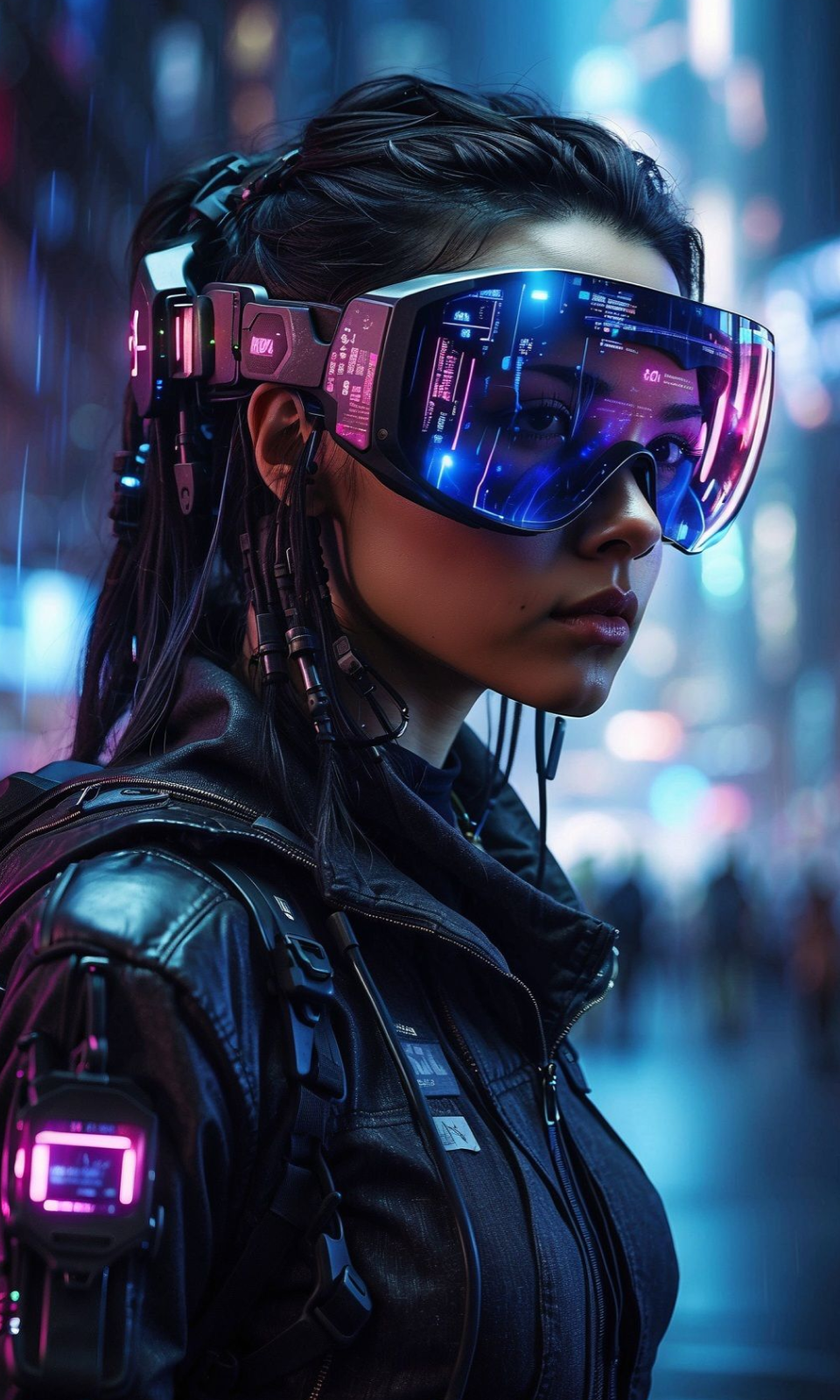
AI models
Compare image models
Pick a better model before making more versions.

AI video tools
Make it move
Animate a still or turn it into a clip.
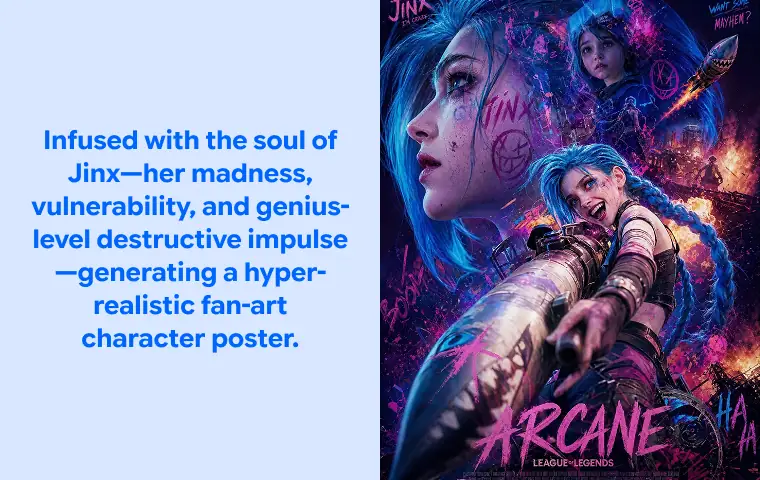
Text to Image
Prompt-first creation
Turn a written idea into an image.
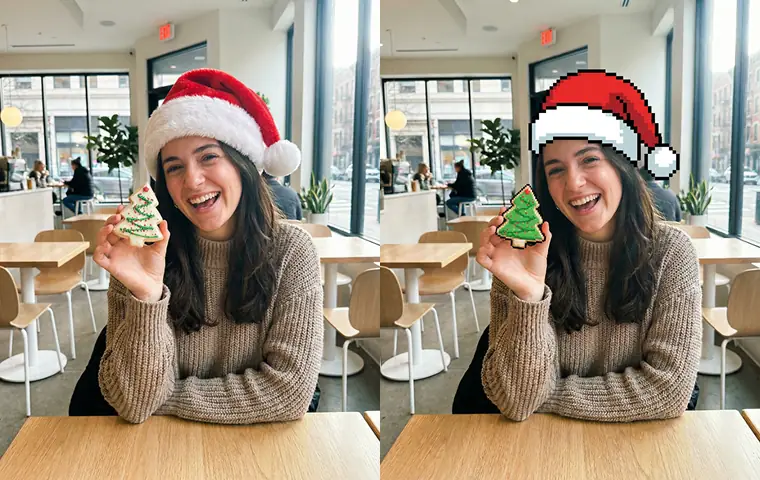
AI Image Generator
Start from any idea
Create a fresh image from a prompt.
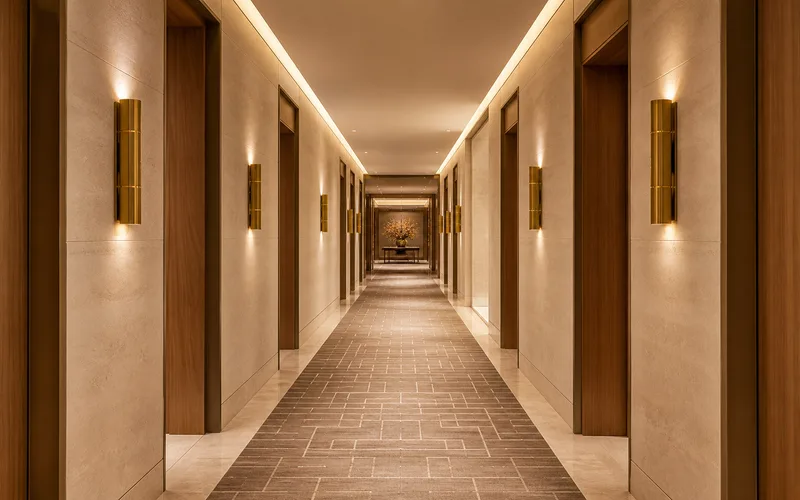
AI Corridor Generator
Spatial concepts
Create hallways, tunnels, and interior passages from a spatial brief.

Image to Image
Use a reference
Restyle or revise an existing image.

AI Logo Generator
Brand marks
Create logo ideas from a short brief.

Image Enhancer
Improve quality
Recover detail, color, and clarity.