
Social Media Banner Generator for Every Platform
Describe your campaign, brand mood, message, and target platform. Generate a social banner for the right canvas, with the key content placed where it stays visible.
Describe your social media banner *
Publishing platform *
Choose where you plan to publish the banner.
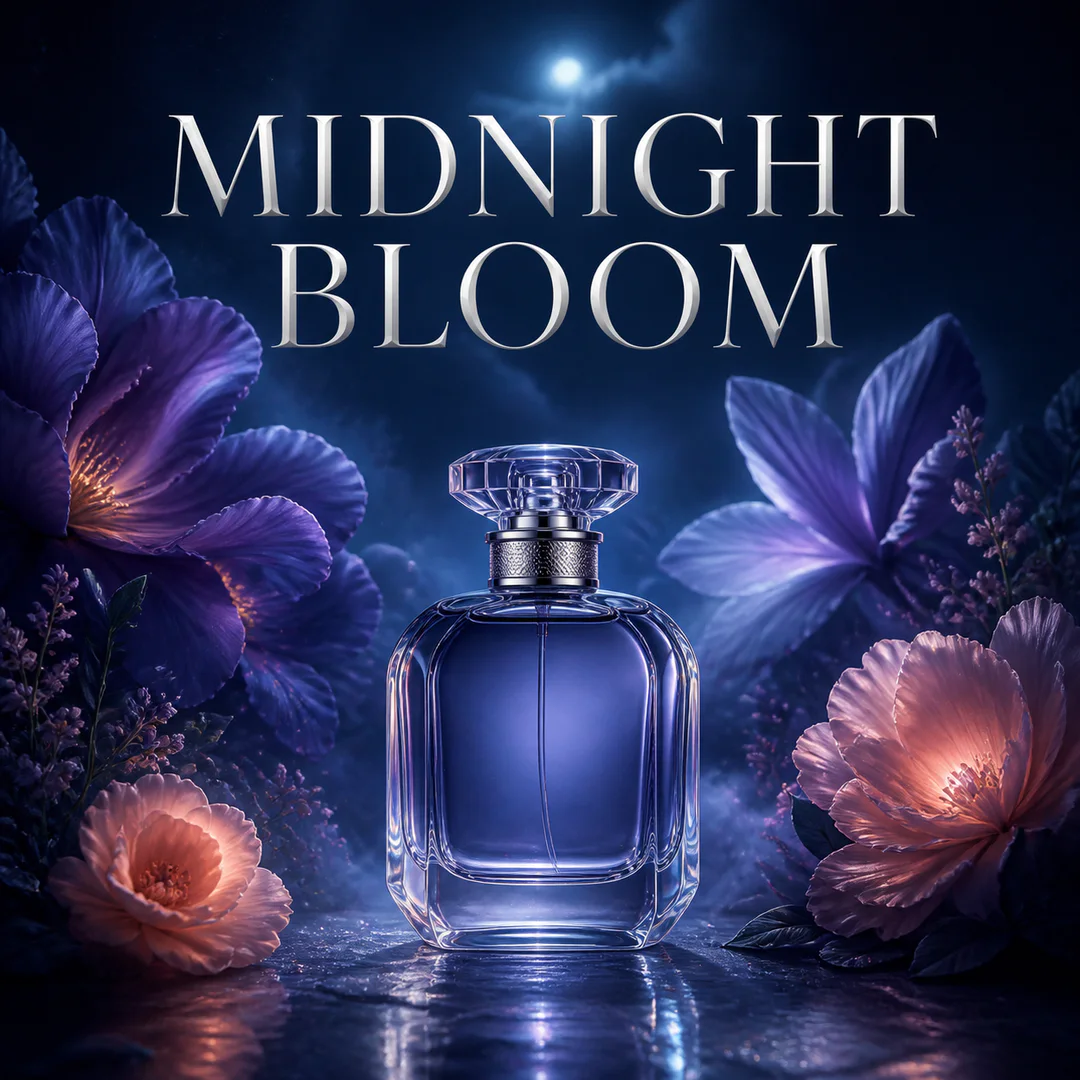
Prompt
Square Instagram campaign for a botanical fragrance named MIDNIGHT BLOOM, midnight blue and violet, elegant glass bottle, luminous flowers, premium editorial lighting.
How to create a social media banner with AI
Turn a short campaign brief into a downloadable banner without rebuilding the layout by hand.
- 01
Start with the platform and purpose
Say where the banner will appear and what it needs to communicate: a launch, offer, channel identity, event, or brand refresh.
- 02
Describe the visual hierarchy
Name the headline, focal subject, brand colors, mood, and the one detail viewers should notice first.
- 03
Choose the available settings
Use the platform, format, style, and other options returned by the tool to shape the output for its destination.
- 04
Generate, review, and download
Check the crop, headline, contrast, and profile-photo overlap. Refine the brief if needed, then download the strongest version.
Design for the space each platform actually gives you
A square post, a profile header, and channel art do different jobs. The strongest banner keeps its message clear inside the part viewers will see.
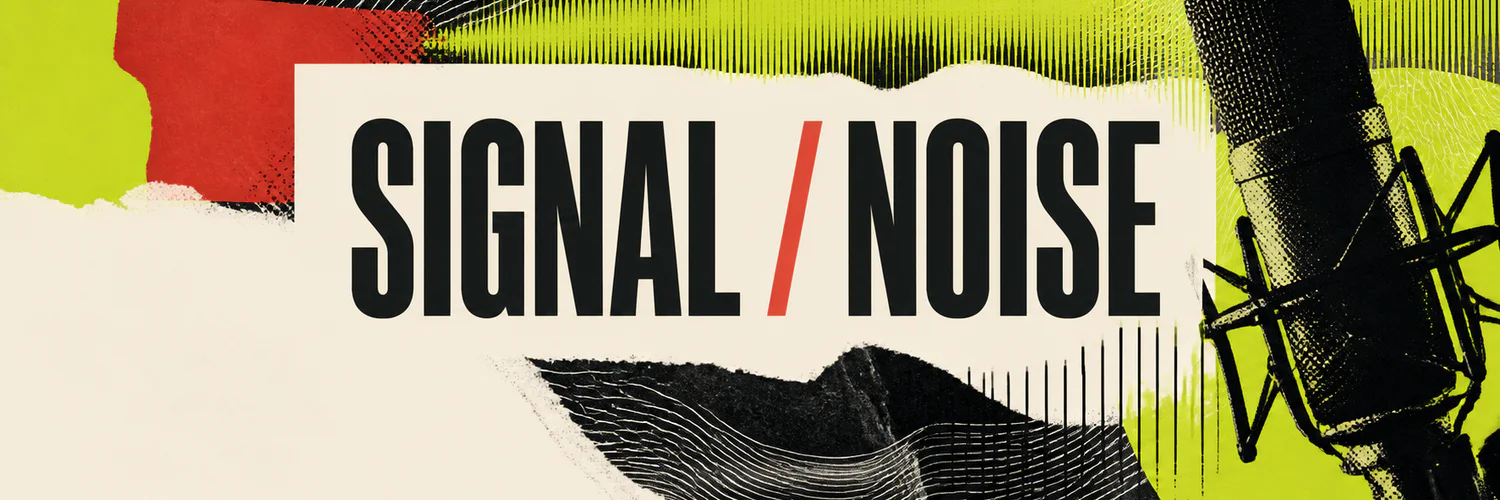
Build a bold X header without hiding the message
Use an ultra-wide composition, keep essential text near the center, and leave the lower-left area quiet so the profile image does not compete with the headline.
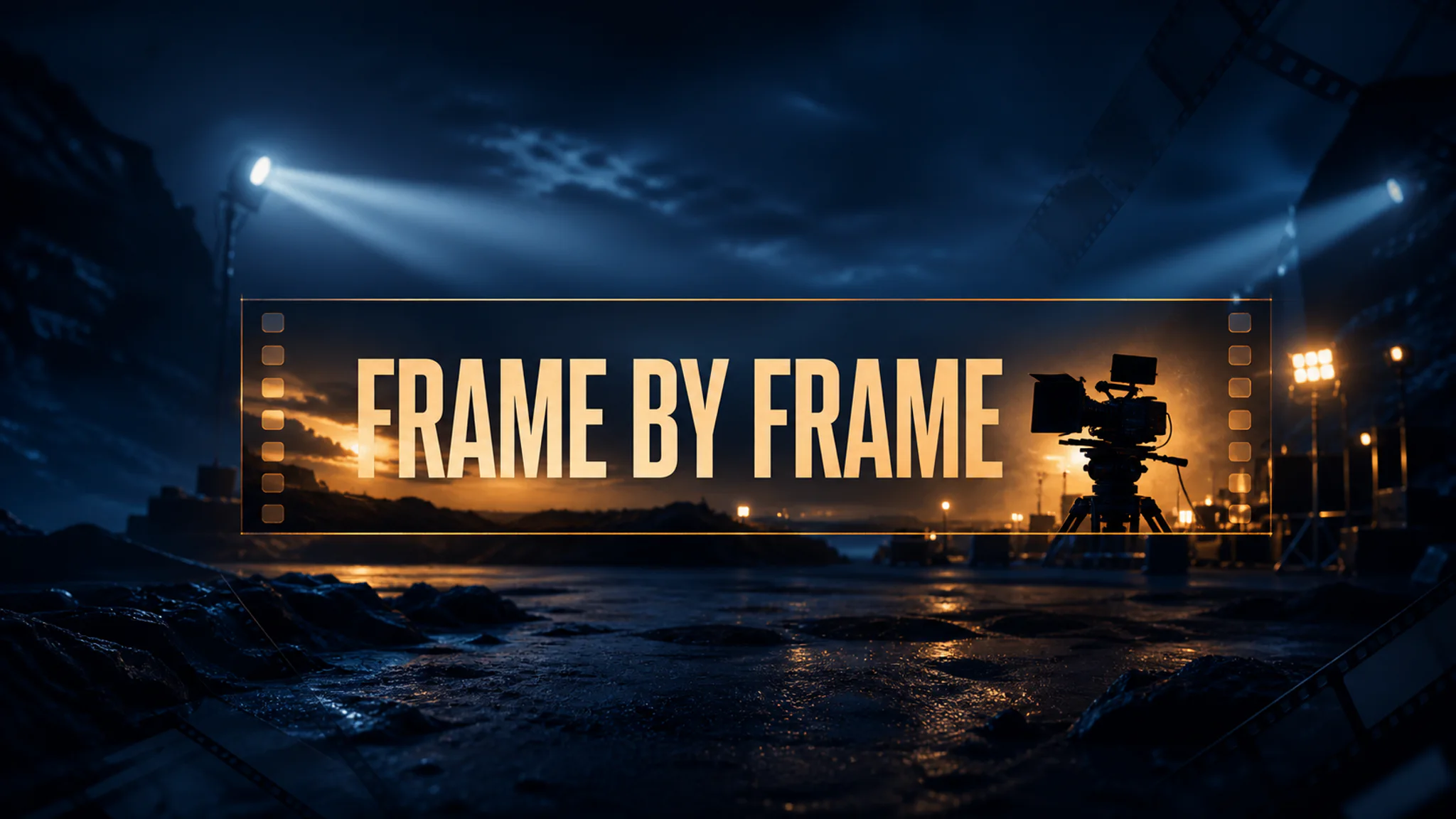
Keep YouTube channel art readable across devices
Let atmosphere extend across the full 16:9 canvas while keeping the channel name and focal subject inside the narrow center area that survives device crops.
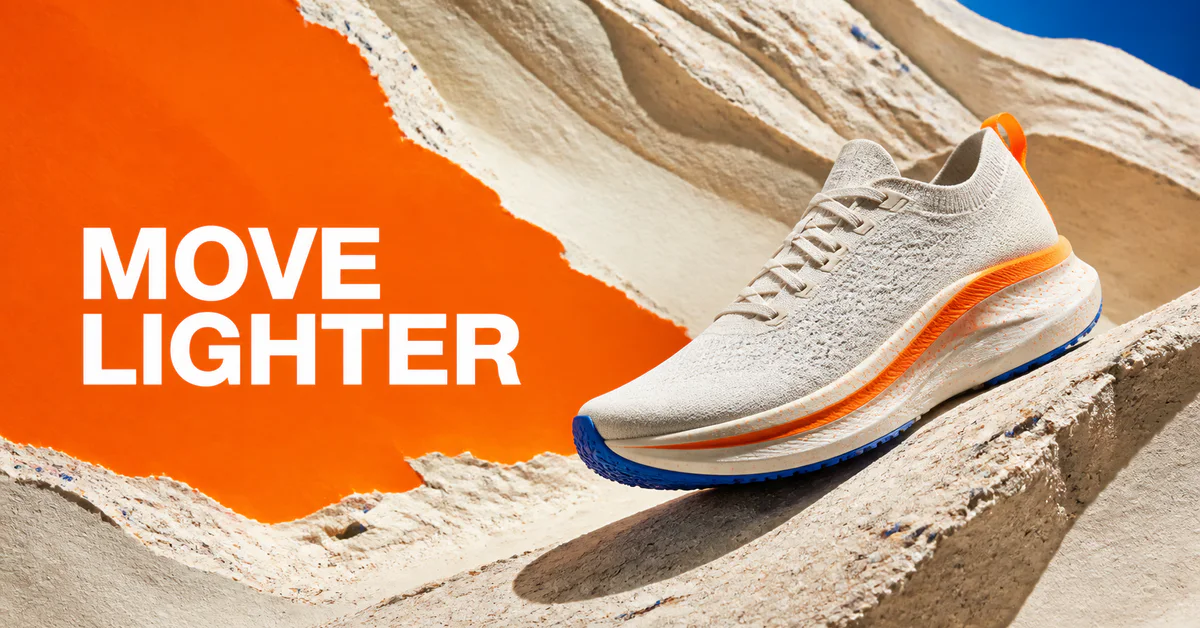
Give paid-social campaigns one clear focal point
Pair a short headline with one product or subject. A simple left-to-right hierarchy helps the message read quickly in a busy feed.
Write a prompt that produces a stronger banner
Give the generator a clear hierarchy, a defined visual direction, and enough room for the platform crop.
Keep the headline short
Aim for one memorable message. Long copy becomes hard to read when the banner is viewed on a phone or inside a crowded feed.
Name the exact destination
A LinkedIn background, Facebook cover, X header, YouTube channel banner, and landscape ad all need different proportions and content zones.
Call out the safe area
Tell the generator where a profile photo or responsive crop may cover the design, and ask it to keep text and faces away from those edges.
Review text before publishing
Check every letter, date, price, and call to action. For precise campaign typography, add final production text in a design editor when needed.
Make the first impression count
Create your next social banner from one focused brief.
Choose the available platform and format settings, describe the message and visual direction, then generate a banner made for that canvas.
Social Media Banner Generator FAQ
Answers about prompts, platform sizes, safe areas, text, credits, and downloads.
What is a social media banner generator?
It is an AI image tool that turns a written campaign or brand brief into a banner concept. You describe the platform, message, subject, colors, and style, then choose the available settings and generate the image.
Can I create banners for different social platforms?
Yes. Use the platform and format options available in the tool for destinations such as Instagram, Facebook, LinkedIn, X, YouTube, and paid-social placements. Each format uses a different canvas and composition.
What should I include in my banner prompt?
Include the destination platform, banner purpose, exact short headline, main subject, brand colors, visual style, and any area that should stay clear for a profile photo or device crop.
Will the AI spell every headline correctly?
AI-generated text can still contain mistakes. Review the headline closely and regenerate when needed. For exact production typography, leave clean text space and add the final copy in a design editor.
Do I need an account and credits?
You can prepare your prompt and explore the page before signing in. The current credit cost appears on the generation button, and you will be asked to sign in when you generate.
Can I download the generated banner?
Yes. When the banner is ready, use the download control in the result panel. Review its crop, text, and platform fit before publishing.
Keep creating
Keep working from here
Continue with image edits, compare model quality, or send the result into a video workflow.

AI image tools
More image tools
Create, edit, clean up, or upscale stills.
AI models
Compare image models
Pick a better model before making more versions.
AI video tools
Make it move
Animate a still or turn it into a clip.
Social Media Post Generator
Social campaigns
Draft captions first, then create a matching post visual.
Infographic Generator
Visual explanations
Turn processes, comparisons, timelines, and facts into structured visuals.
AI Image Generator
Start from any idea
Create a fresh image from a prompt.
Text to Image
Prompt-first creation
Turn a written idea into an image.
AI Image Editor
Prompt-based edits
Change an image without starting over.
Product Picture Generator
Product visuals
Create polished product photos and campaign scenes.