
Create Scroll-Stopping Clips with HappyHorse AI
Use HappyHorse AI on Ezier to test short video hooks, expressive character beats, and fantasy-style transitions. Write one focused scene, then generate.
Test the hook before you polish the clip
Use HappyHorse AI to test one short video idea at a time: the opening motion, the visual surprise, and the final frame you may want to refine.
Create a 6-second high-impact video of a red supercar racing across a white salt desert at sunset. Add a low-angle tracking camera, dust rolling behind the tires, chrome transformation energy, and one powerful final frame that feels like a fantasy car commercial.
Draft a HappyHorse AI clip in Ezier
- 01
Start with the HappyHorse context
Start from HappyHorse AI and spend the first decision on the scene brief: hook, subject, action, camera move, and final frame.
- 02
Write one short scene
Describe the subject, action, camera movement, visual change, and ending frame. Keep the first draft focused on one beat instead of several cuts.
- 03
Add inputs when supported
Use upload when it is available for the selected setup. If you are working from prompt only, describe the reference look, motion, and final frame directly in the brief.
- 04
Check credits, then review
Use the credit estimate on Generate as the final check. After generation, review the hook, subject consistency, camera movement, and whether the ending frame is strong enough to refine.
What the prompt needs to carry
A strong HappyHorse AI prompt gives the model one clear scene: the opening hook, the subject action, the camera move, the visual change, and the frame that should hold at the end.
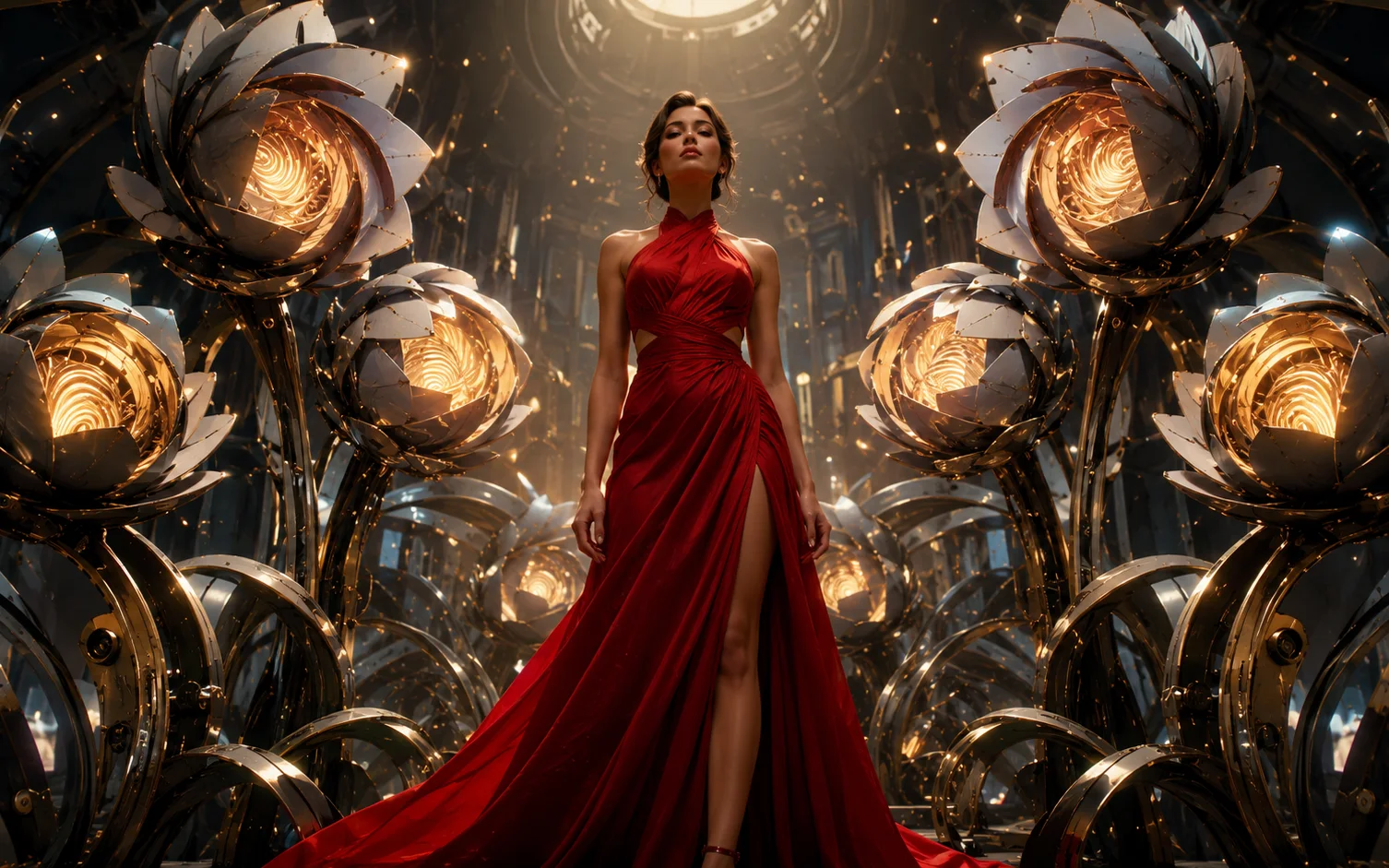
Lead with the opening beat
HappyHorse AI fits compact ideas where the first movement needs to read quickly. Put the attention-grabbing change at the start, then use the rest of the prompt to keep it clear.

Keep character motion readable
For expressive subjects, name the body action, camera tracking, and what should remain stable. The cleaner the movement goal, the easier the result is to judge.
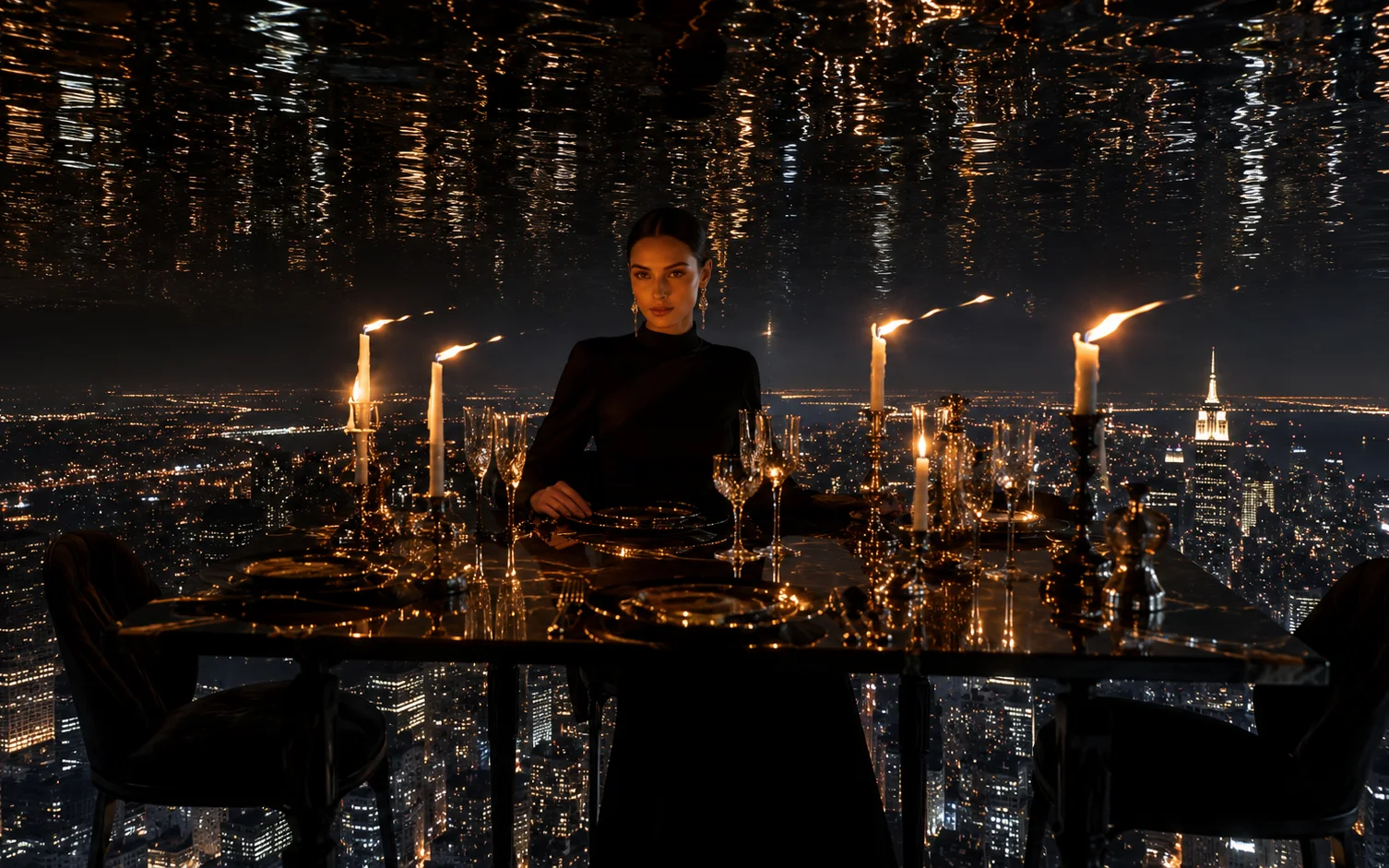
Use fantasy transitions with a clear endpoint
A transformation prompt still needs structure: where the scene starts, what changes, how the camera moves, and what final frame should hold after the effect lands.
HappyHorse AI controls worth checking
Keep the setup grounded in the choices you can act on: use HappyHorse AI, write the scene in the prompt box, add supported inputs when upload is available, and check credits before Generate.
- Hook
- Best starting pointStart with one visual idea that can be understood quickly: a reveal, pose change, transformation, or camera move.
- 1 scene
- Prompt focusKeep the first pass centered on one scene and one movement goal. Add more story only after the motion works.
- Credits
- Submit checkCheck the selected model and the credit estimate on Generate before sending the job.
Make the first second count
For short-form drafts, the opening action matters. Put the strongest visual change near the start of the prompt.
Make the subject easy to track
Describe one main subject and one camera move. Too many moving elements make the first draft harder to evaluate.
Plan the final frame
Ask for a clean hold at the end so the result can become a thumbnail, next edit, or stronger prompt reference.
Refine the strongest version
After generation, compare hook clarity and subject consistency before spending another pass on style details.
What to know before using HappyHorse AI
Use public model notes as context, then judge the draft in Ezier: prompt clarity, upload availability, credits, motion quality, and the generated result.
Use it as a prompt-led motion test
Public HappyHorse AI details are limited, so treat the first pass as a practical test: can the idea create clear motion, a readable hook, and a useful ending frame?
Keep the first pass compact
Start with one scene, one subject, and one visual change. Add story or extra cuts after the motion works.
Review consistency before style
Check short clips for subject stability, scene continuity, camera movement, and whether the final frame is worth polishing.
Rely on the controls you can see
Use the prompt box, upload availability, visible settings, credit estimate, and generated result as your practical guide.
HappyHorse AI in Ezier
Turn one visual hook into a clip you can judge.
Start with a short-form concept, generate a focused draft, then review motion clarity, subject stability, and the final frame before refining.
HappyHorse AI FAQ
Practical answers for HappyHorse AI prompts, short-form use cases, supported uploads, credits, and result review in Ezier.
How do I use HappyHorse AI in Ezier?
Write a short video brief in the prompt box, use HappyHorse AI for the draft, add supported inputs when upload is available, check the credit estimate on Generate, then submit the draft.
What should I write in a HappyHorse AI prompt?
Name one hook, the subject, the action, camera movement, visual change, and final frame. A focused prompt is easier to judge than a multi-scene script.
What do we know about HappyHorse AI publicly?
Detailed public HappyHorse AI parameter documentation is still limited compared with larger model families. Use the prompt box, visible Ezier controls, credit estimate, and generated result as the practical guide.
Is HappyHorse AI good for social video concepts?
Yes, use it to test a compact visual hook, expressive subject motion, or fantasy-style transition before refining the idea into a more polished clip.
Can I upload a reference for HappyHorse AI?
Use upload when it is available for the selected setup. If you are working from prompt only, describe the reference style, subject shape, motion, and final frame in the prompt.
How should I review a HappyHorse AI result?
Check whether the opening hook is clear, the subject remains recognizable, the camera supports the action, and the final frame is useful for a thumbnail, edit, or next prompt.
When is HappyHorse AI the wrong fit?
Use a different video tool when the job needs visible controls for a specific duration, audio behavior, reference inputs, or longer story continuity. Use HappyHorse AI when the immediate hook is the main thing to test.
Related paths
Where to go after HappyHorse AI
Use another model for a different motion style, edit the clip, or improve the source asset.
AI models
Compare models
Choose a better fit before you generate.
AI video tools
Turn images into motion
Animate a still or create a clip.

AI image tools
Create or edit images
Make, clean up, or upscale stills.
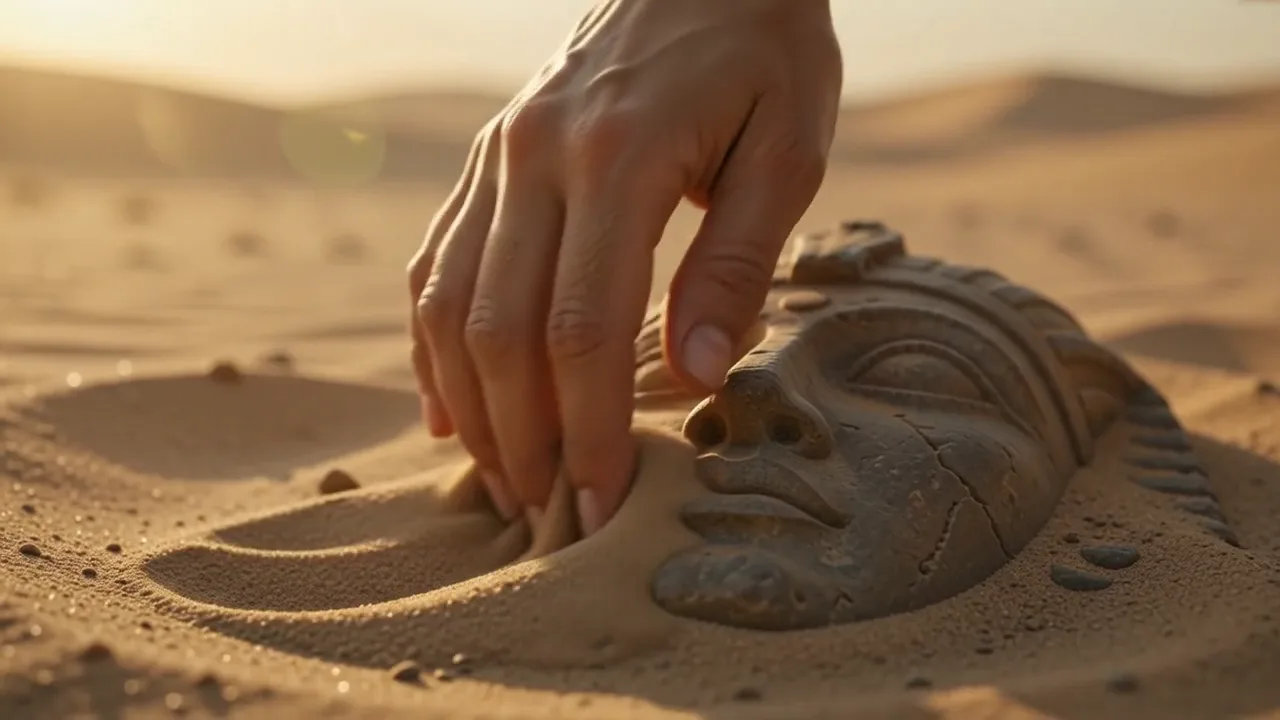
Kling 3.0
Action and motion
Use for action, motion, and story beats.
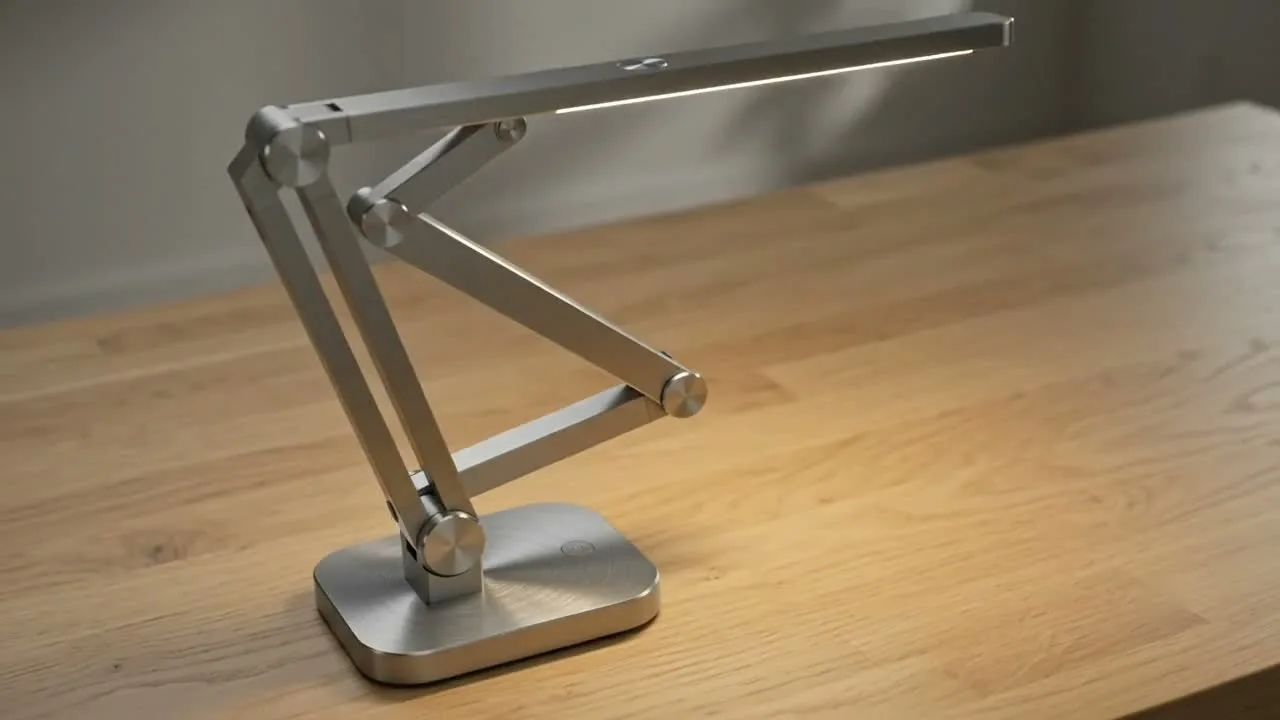
Seedance 2
Reference-led video
Use for fast motion drafts from references.
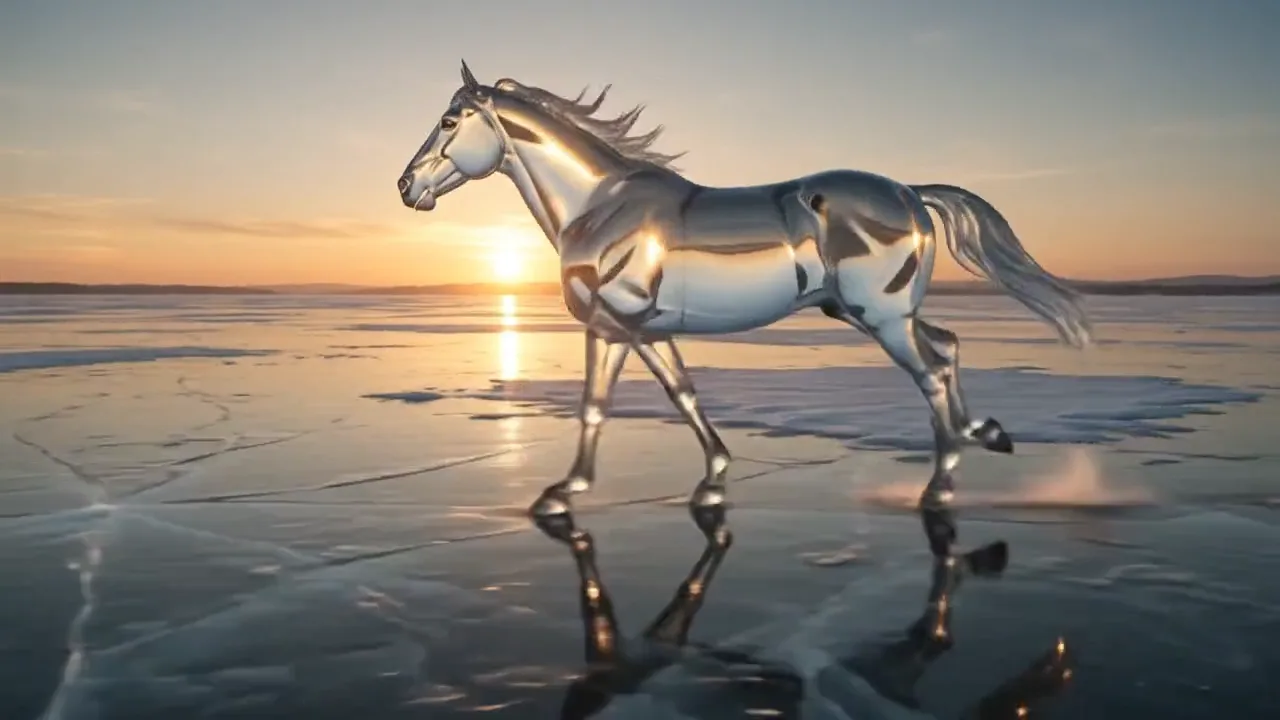
Hailuo AI
Physical motion
Use for fabric, liquid, and physical motion.
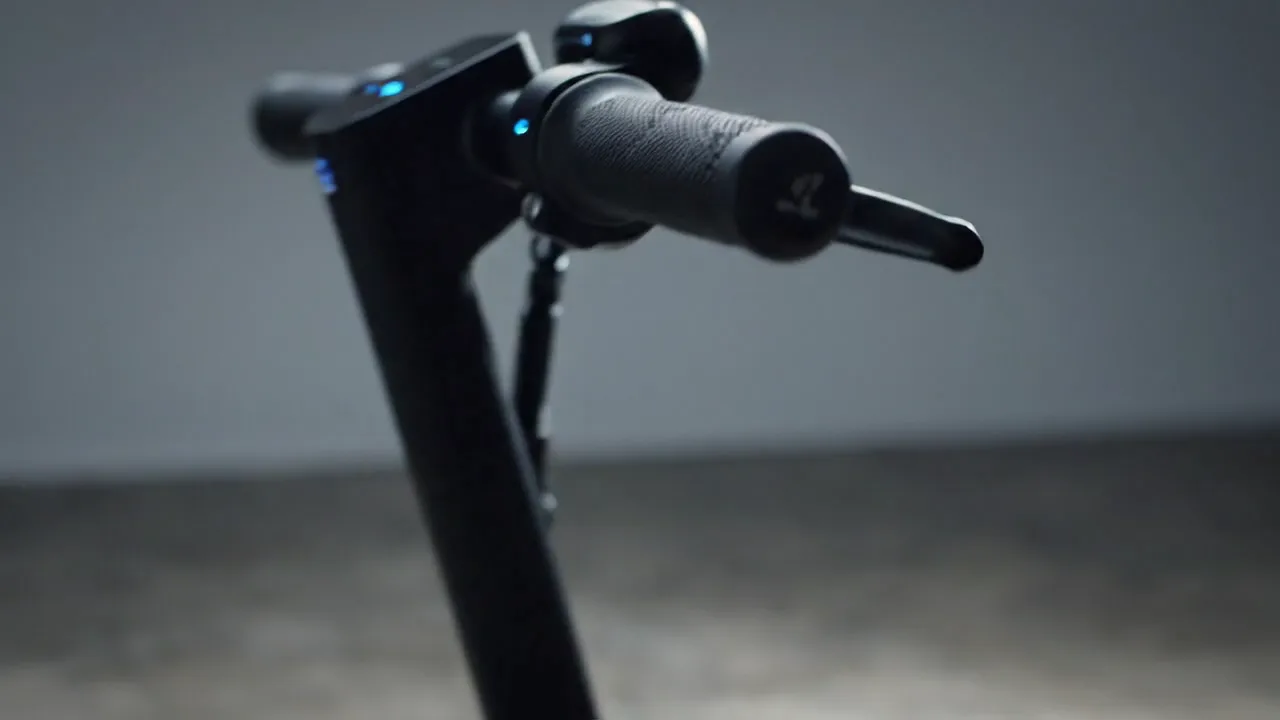
Veo 3.1
Cinematic control
Use for cinematic shots and camera moves.
Seedance AI
Seedance family
Explore more Seedance video options.
Kling AI
Kling family
Explore more Kling video options.