
AI Logo Generator for Brand Concepts
Create logo concepts from a brand name: wordmarks, icon marks, badges, and visual directions you can compare before vector design.
Create
Model
Prompt
0/500
Style
Size
Turn a brand name into logo directions you can judge
Start with a name, a tone, and the place the logo needs to live. Then generate a few logo directions that are clear enough to judge.
- 01
Name the logo context
Start with the brand name, industry, audience, and where the logo will appear first: app icon, website header, packaging, badge, or social profile.
- 02
Choose the logo style and frame
Use the style picker to push the concept toward minimal, retro, 3D, hand-drawn, or another direction. Keep 1:1 when you want a logo-first composition.
- 03
Compare a few logo directions
Look for the clearest logo idea, not the busiest image. Change one variable at a time when you refine: style, model, prompt, or size.
- 04
Test the logo mark small
Review the concept at avatar and favicon scale before you decide it is worth polishing.
Explore the logo formats a brand may need
Use one logo prompt to generate name-led wordmarks, compact symbols, and logo concept sheets that show how a direction could work beyond one image.
Generate logo wordmark concepts
Explore typography-led logo directions where the brand name carries the identity and the mark stays simple enough to build from.
Create compact logo marks
Draft standalone logo symbols for profiles, app icons, browser tabs, and other places where the brand needs to read without a full lockup.
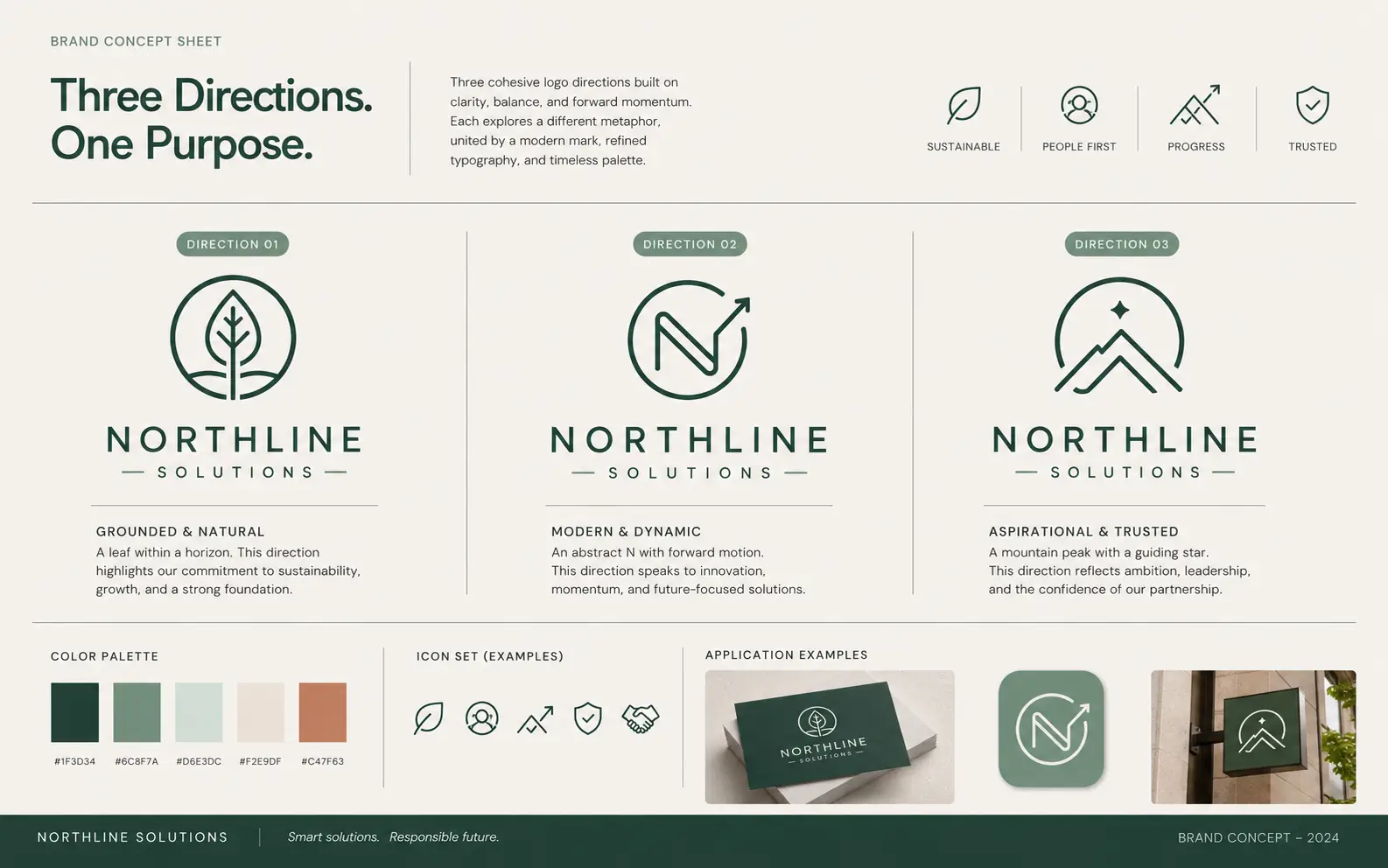
Compare logo concept sheets
Generate fuller logo directions with logo options, palette cues, supporting icons, and application mockups before you decide what to refine.
Pick the logo direction that can survive real use
A good logo concept should still read when it is small, simple, and stripped of decoration. Use the first round to find that durable shape.
Keep one idea at the center
Logo prompts get weaker when they ask for every metaphor at once. Pick the one idea the mark should carry first.
Test the logo mark in black and white first
If the logo concept needs color, gradients, or texture to make sense, the underlying shape is probably too busy.
Use references for direction, not duplication
A sketch, mood board, or old logo can guide proportion and mood without asking the model to copy an existing mark.
Move to vector once you choose a direction
Use generated concepts to pick a path, then rebuild the final logo in vector tools for clean outlines, exports, and ownership review.
AI Logo Generator in Ezier
Generate logo concepts worth taking into design.
Start with a logo prompt, style, and brand name. Once a logo direction feels right, rebuild it cleanly in vector tools for final brand assets.
AI Logo Generator FAQ
Practical answers for prompts, references, logo-first sizing, and what needs human cleanup before launch.
What should go in the prompt first?
Start the logo prompt with the brand name, industry, audience, tone, and where the logo will appear first. Add one or two visual cues only after the basics are clear.
Should I upload a reference image?
Upload a reference when you already have a sketch, mood board, or rough logo direction. It helps with proportion and mood, but the prompt should still explain what should change.
Why keep the size at 1:1?
A square frame is the safest starting point for avatars, app icons, and simple brand lockups. Wider or vertical sizes are better when you are exploring banners or layout-specific marks.
Can I use the result as a final logo?
Treat the result as a concept draft. For a production logo, rebuild the chosen direction in vector tools, check the details at small sizes, and prepare the final exports from there.
What should I check before choosing a direction?
Check whether the logo name is readable, the symbol still works in one color, and the idea remains clear as a favicon, avatar, or small product mark.
Can I use generated logos commercially?
Commercial use depends on your plan, the current policy terms, and any third-party material in your logo prompt or reference image. Review those terms before using a result in public or paid work.
Next up
Choose your next image step
Try a nearby image workflow, compare models, or turn your result into video.
AI image tools
More image tools
Create, edit, clean up, or upscale stills.
AI models
Compare image models
Pick a better model before making more versions.
AI video tools
Make it move
Animate a still or turn it into a clip.
Text to Image
Prompt-first creation
Turn a written idea into an image.

AI Image Generator
Start from any idea
Create a fresh image from a prompt.

Product Picture Generator
Product visuals
Create polished product photos and campaign scenes.
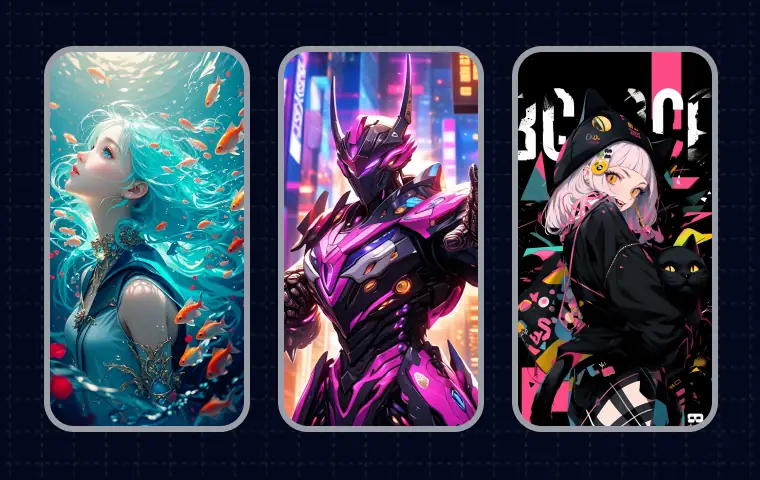
AI Wallpaper Generator
Wallpapers
Make backgrounds for screens and sets.

Image to Image
Use a reference
Restyle or revise an existing image.
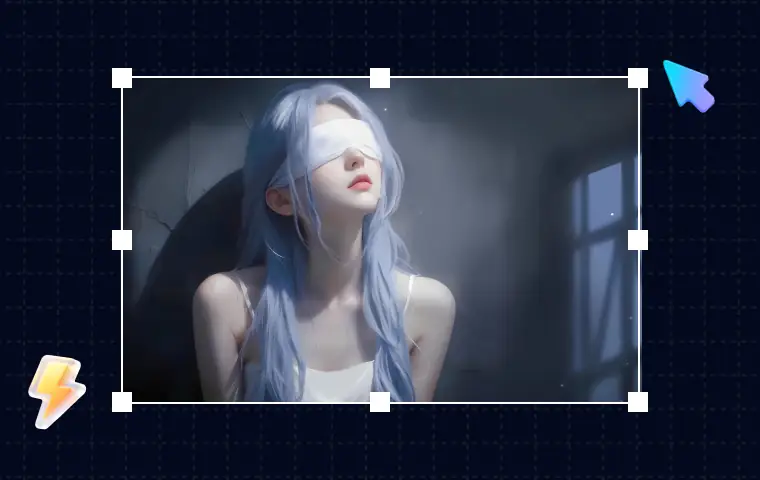
AI Image Editor
Prompt-based edits
Change an image without starting over.