
AI Food Image Generator
Turn dish photos or written prompts into menu-ready food images for delivery apps, social posts, and restaurant marketing.
Model
Food photo*
Choose a model to continue.
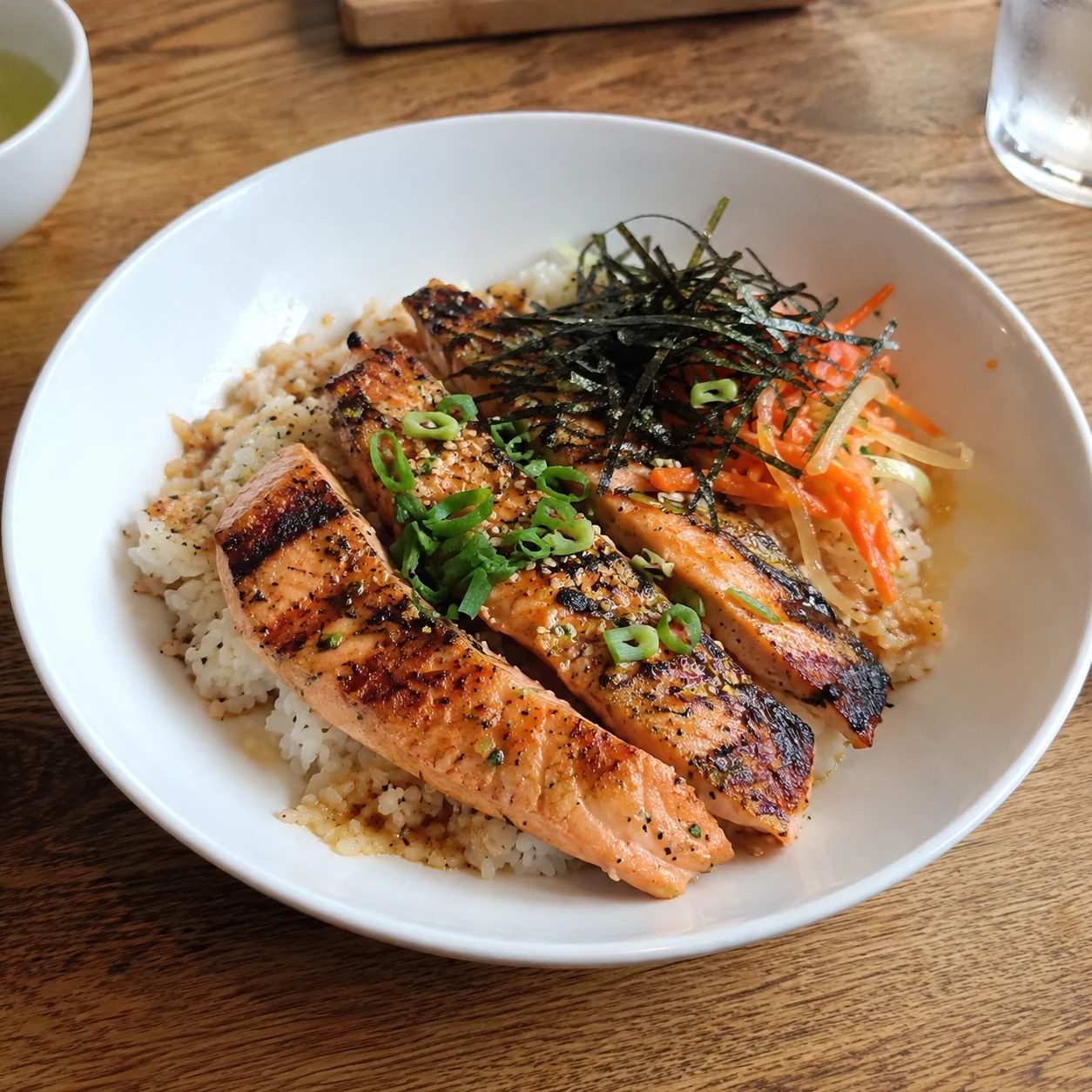
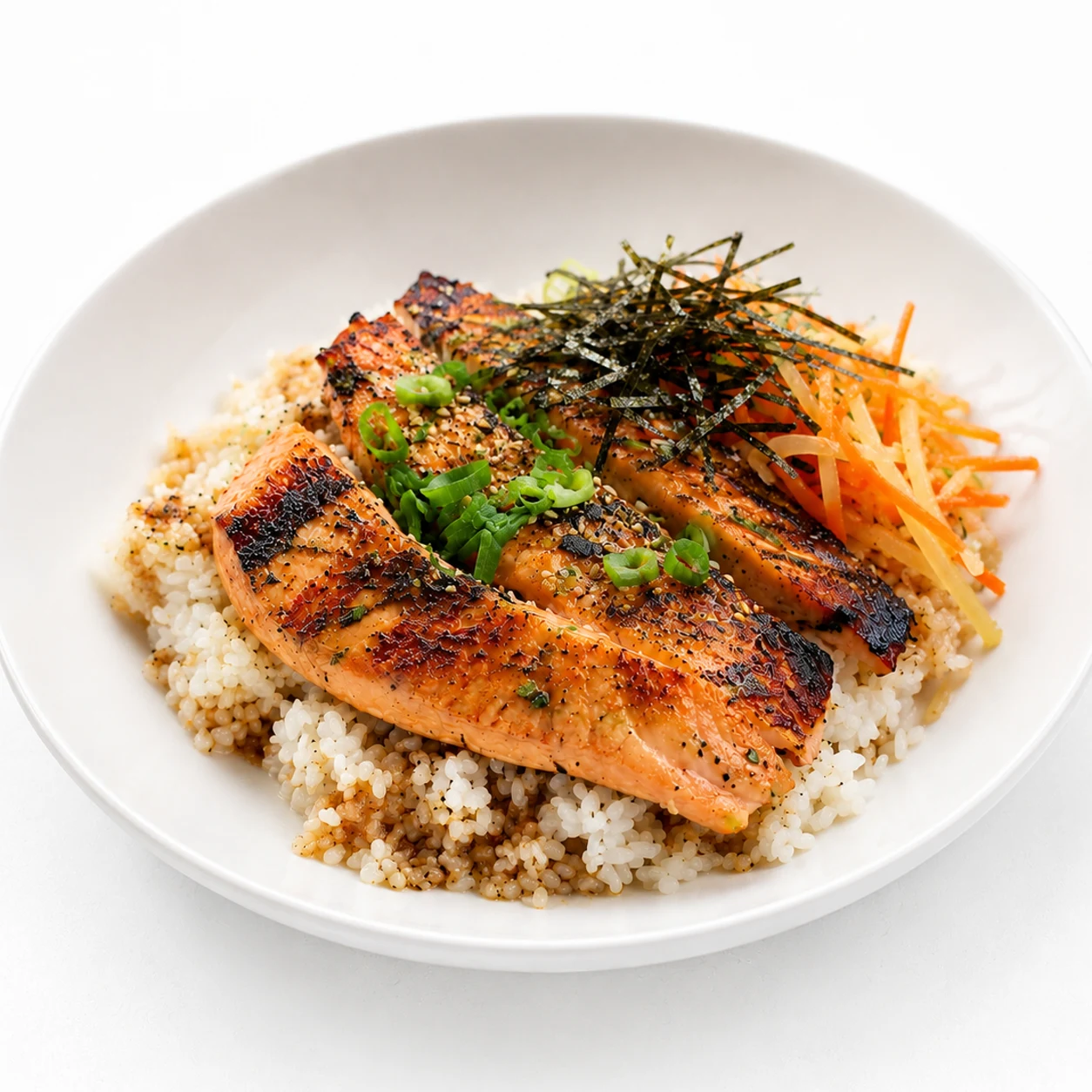
How to use the AI Food Image Generator
Start with a real dish photo for closer edits, or write a prompt for a new concept. Then choose the settings that fit where the image will be used.
- 01
Choose Edit Photo or New Image
Use Edit Photo when the result should stay close to a real dish. Use New Image when you want to create a concept from a prompt.
- 02
Upload a photo or write a prompt
Add a clear dish photo for edits, or describe the dish, plating, background, lighting, and mood you want the AI to create.
- 03
Set the image details
Choose the style, scene template, camera angle, aspect ratio, and quality for the menu, delivery listing, banner, or social post.
- 04
Generate and review
Review the result for appetite appeal, ingredient clarity, and consistency before using it in a customer-facing place.
Features for menu-ready food images
Use the AI Food Image Generator to polish real dish photos, control how food is framed, and prepare images for the channel where they will appear.
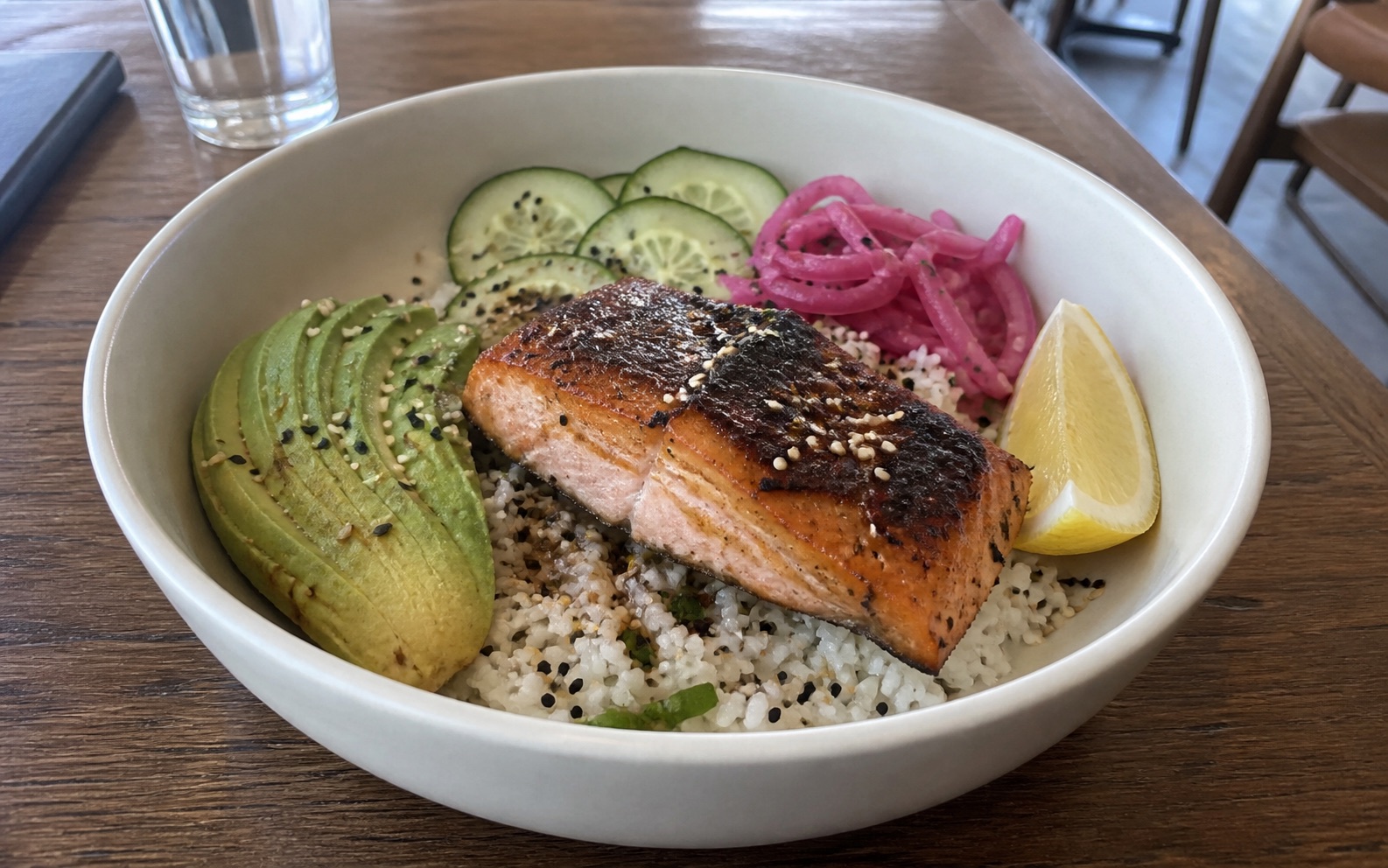
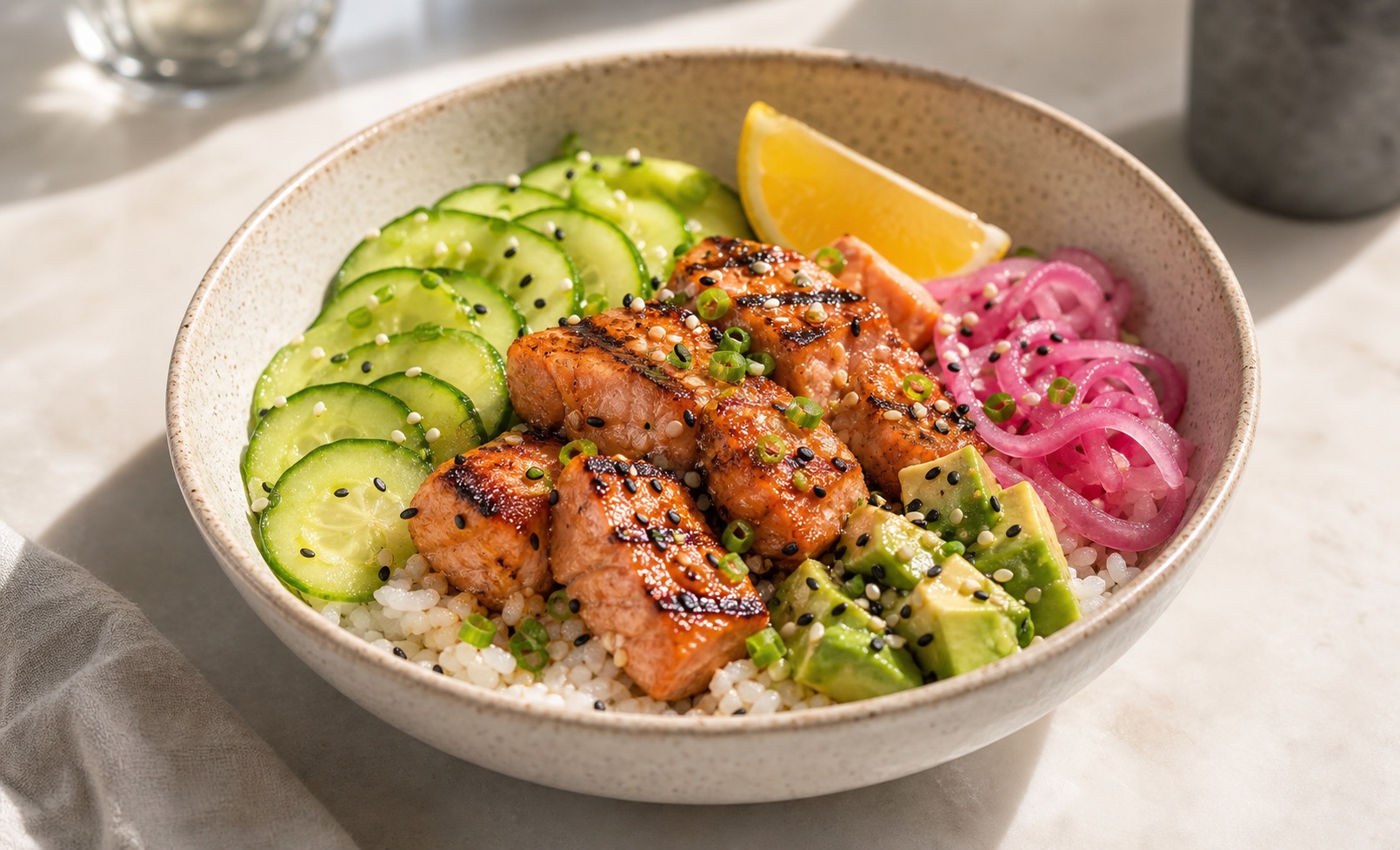
Polish real dish photos
Upload a dish photo to improve lighting, background, and presentation while keeping the plate, portion, and key ingredients recognizable for menus, recipes, or delivery listings.
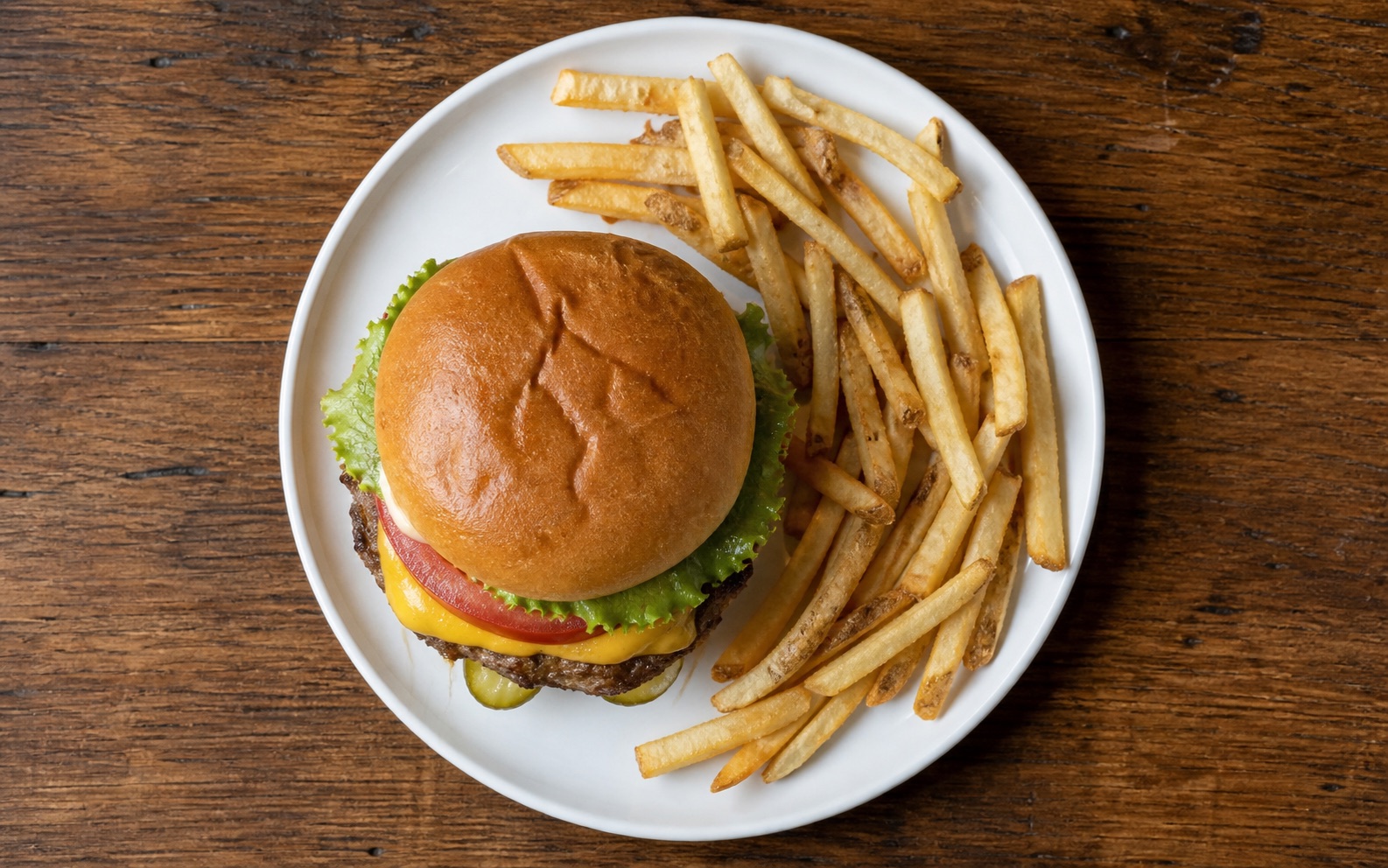
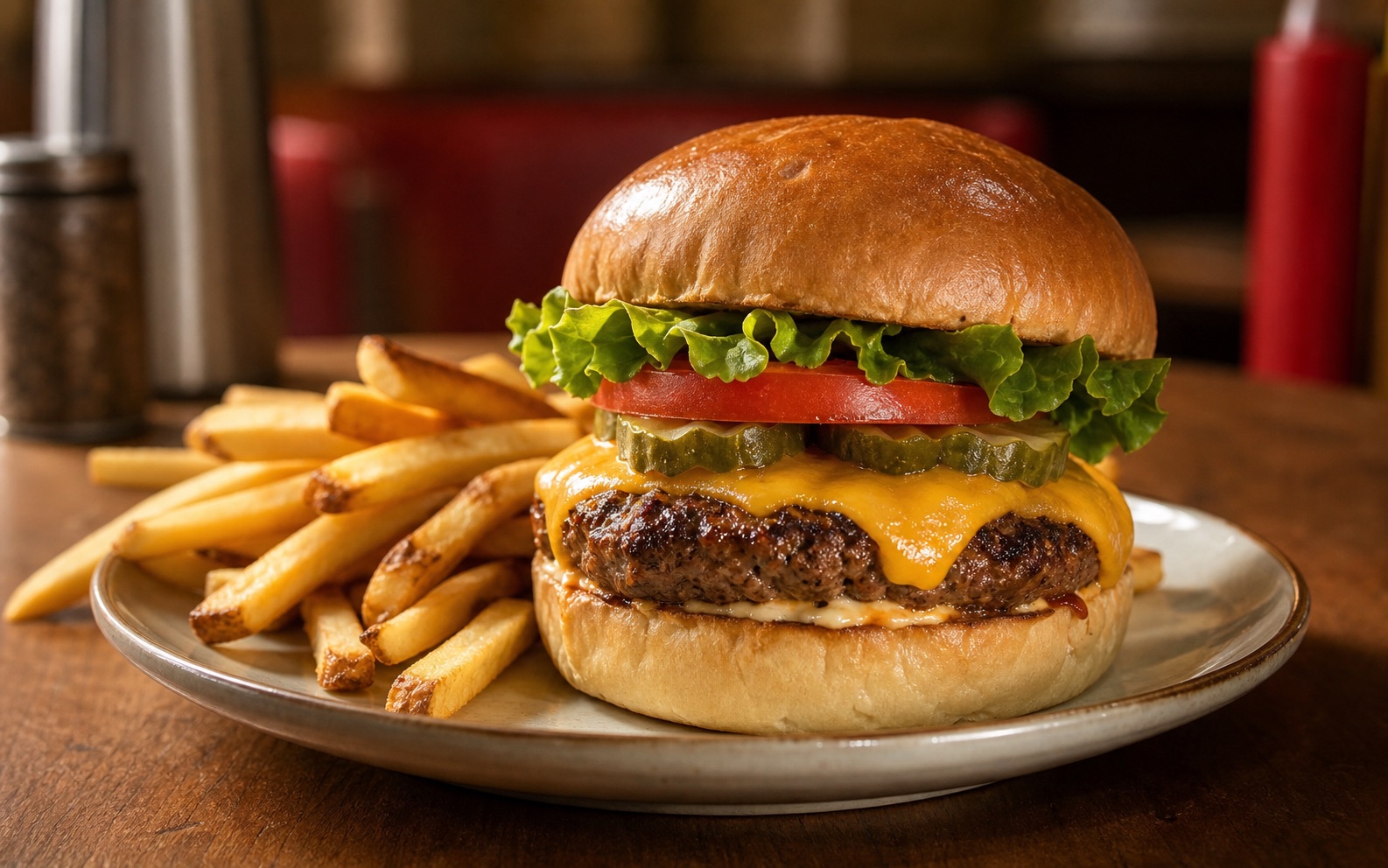
Control camera angle and composition
Choose overhead, angled, or side views based on what makes the dish appealing. Bowls and spreads often work overhead, plated mains benefit from depth, and layered foods need height.
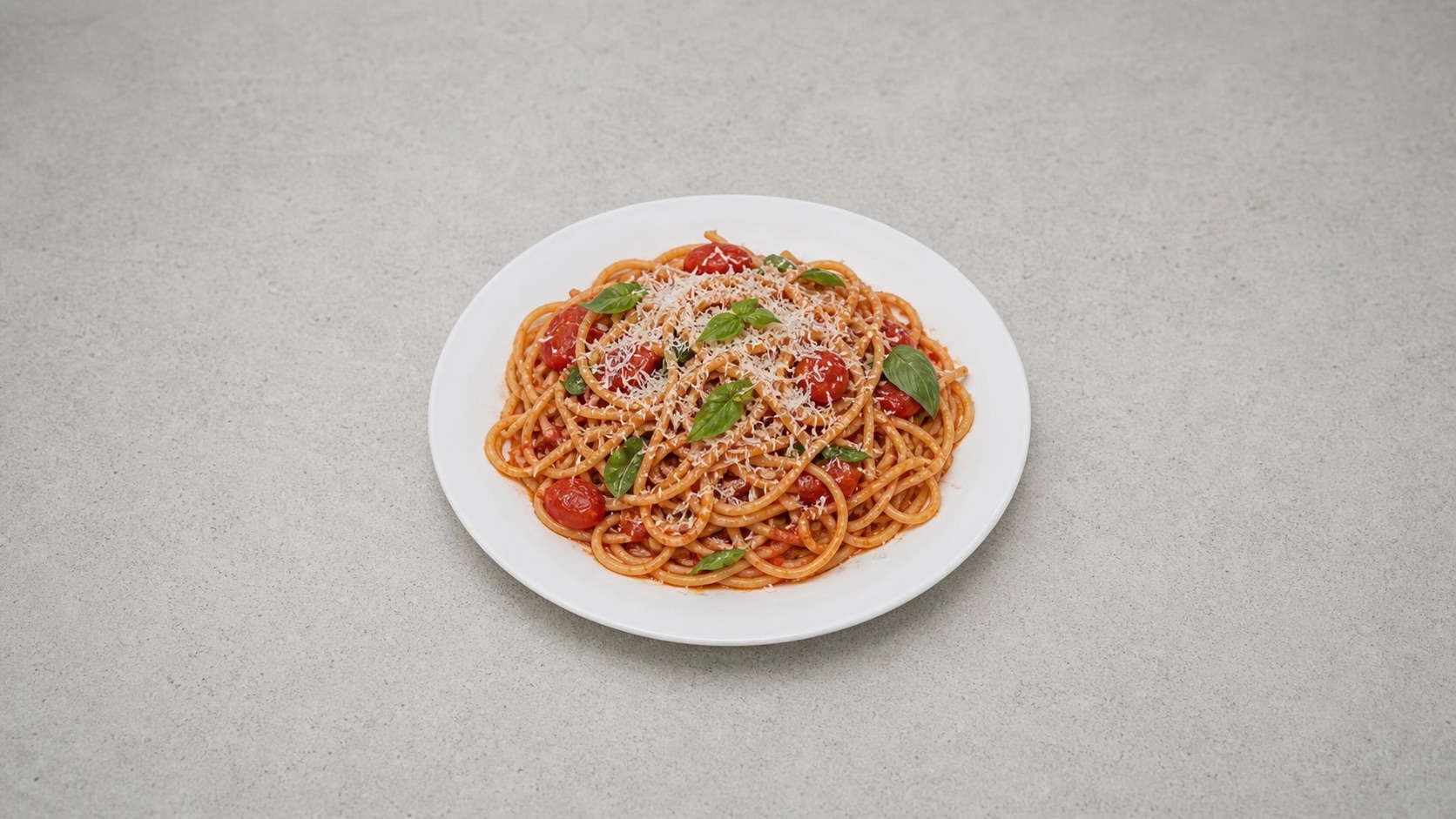
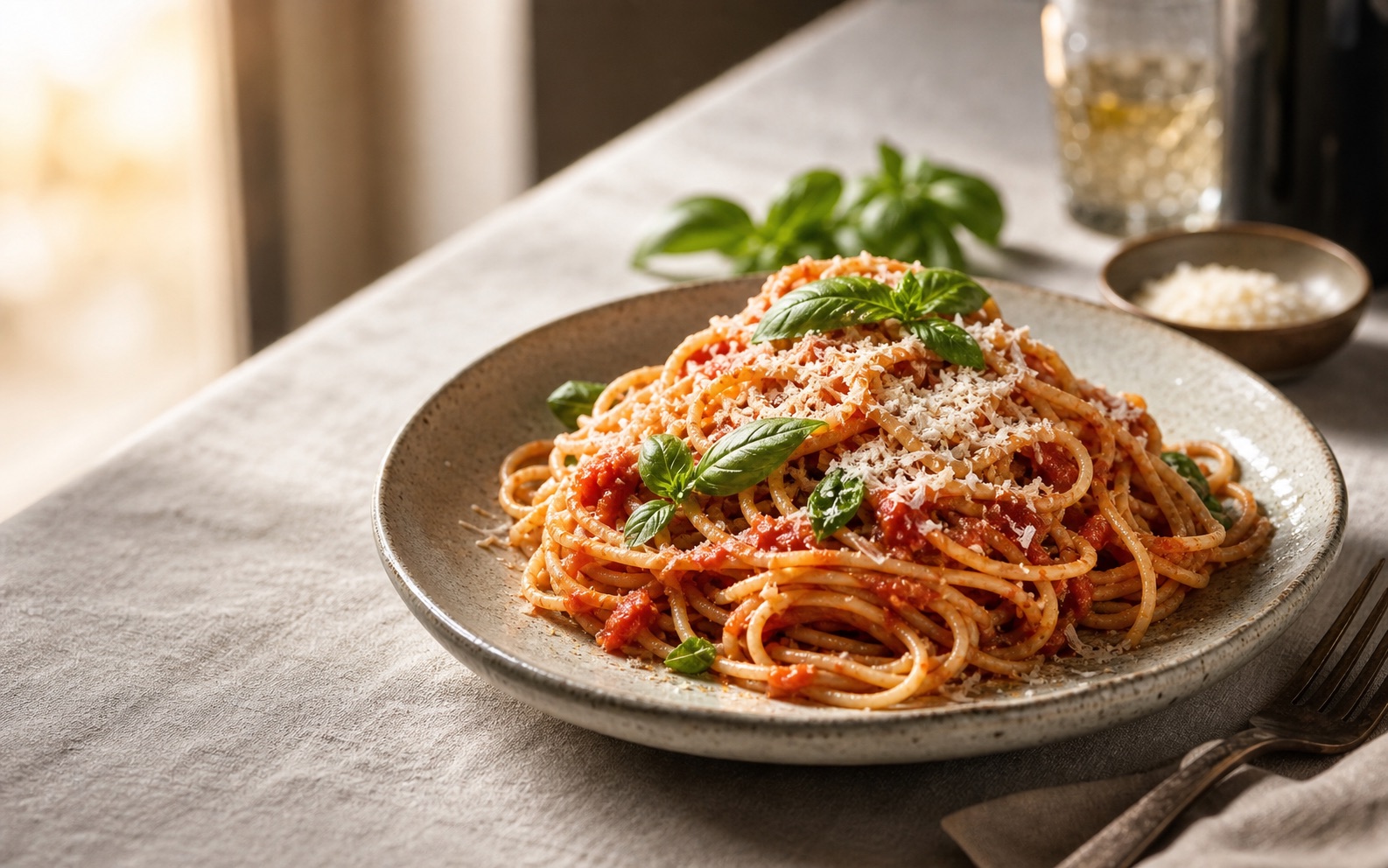
Prepare images for every channel
Set aspect ratio and quality for the final use. Square fits menu grids and delivery apps, portrait suits social and posters, and wider crops leave room for banners, ads, and page heroes.
Tips for better AI food images
Use a tighter brief, a clear source photo, and one consistent visual system.
Brief the shot, not just the dish
Name the dish, hero ingredient, surface, lighting, and mood. "Burger photo" is too vague.
Use real photos for real menu items
If the dish must match what customers receive, start with Edit Photo. Use New Image for concepts and mockups.
Keep each category consistent
Use the same template, angle, ratio, and lighting across a burger set, dessert set, or catering menu.
Do a final quality pass
Need sharper detail or cleaner color? Use Image Enhancer before export.
Start now
Make your next food image menu-ready.
Edit a real dish photo or create a new concept from a prompt.
AI Food Image Generator FAQ
Quick answers about uploads, prompts, camera angles, file types, and where to use AI food images.
What is an AI food image generator?
It creates food visuals from a prompt or a starting dish photo. Use it for menus, delivery listings, recipe content, social posts, ads, and food-brand mockups.
When should I use Edit Photo instead of New Image?
Use Edit Photo when the result should stay close to a real dish. Use New Image when you want a fresh concept from a prompt.
Can I generate an image without uploading a food photo?
Yes. Choose New Image and write a prompt. Uploads are only needed for Edit Photo.
Will the result look like my real menu item?
For the closest match, use Edit Photo with a clear dish photo. Use New Image for concepts, not exact menu-item matches.
How do camera angles affect AI food images?
Overhead works for bowls, pizzas, and spreads. Angled shots add depth. Side views help show height, layers, and stacked ingredients.
Which aspect ratio should I choose for menus, delivery apps, and social posts?
Use square for menu grids and delivery apps, portrait for social and print, and wide crops for banners, ads, and page heroes.
What should a strong AI food prompt include?
Include the dish, hero ingredient, plating, surface, lighting, camera angle, and intended use.
Can I use AI food images for menus, delivery apps, and restaurant marketing?
Yes. Use them for menu drafts, delivery-app artwork, social campaigns, website banners, and recipe pages.
What file types can I upload in Edit Photo mode?
You can upload PNG, JPG, JPEG, WEBP, or GIF files up to 20MB.
Keep creating
Keep working from here
Continue with image edits, compare model quality, or send the result into a video workflow.
AI image tools
More image tools
Create, edit, clean up, or upscale stills.
AI models
Compare image models
Pick a better model before making more versions.
AI video tools
Make it move
Animate a still or turn it into a clip.
AI Image Generator
Start from any idea
Create a fresh image from a prompt.
Text to Image
Prompt-first creation
Turn a written idea into an image.
Image to Image
Use a reference
Restyle or revise an existing image.
Image to Prompt
Describe a reference
Turn visible image details into a reusable AI prompt.
AI Logo Generator
Brand marks
Create logo ideas from a short brief.
Product Picture Generator
Product visuals
Create polished product photos and campaign scenes.